How to embed fonts in PowerPoint (and why your deck looks wrong on every other computer)
May 11, 2026 | 8 min read
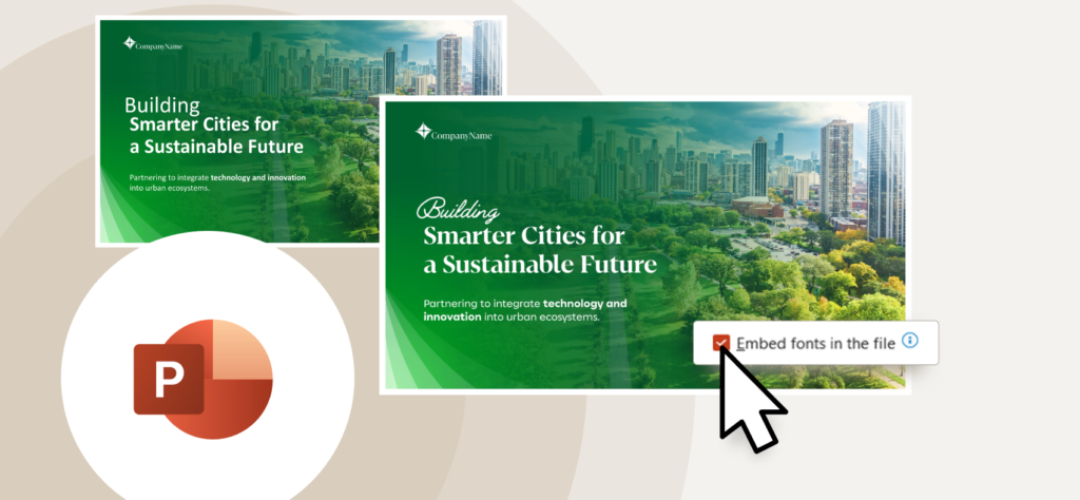
If your deck looks perfect on your laptop and falls apart on someone else’s, font embedding is usually why, here is how to fix it on Windows and Mac and what to do when a font cannot be embedded at all.
You spent two hours getting the typography right. The heading font is custom. The body text has exactly the right weight. The whole deck looks sharp, intentional, and on-brand.
Then the client opens it on their laptop and it looks like a 2004 school project.
That is the font embedding problem in one sentence. And if you work in consulting, research, or any field where decks carry weight, it is a real business problem. Not a cosmetic one.
This guide covers everything you need to know about embedding fonts in PowerPoint, including how to do it on Windows and Mac, what it actually does under the hood, when it will not work, and how to handle those cases.
What does embedding fonts in PowerPoint actually mean?
When you build a presentation using a non-standard font, PowerPoint pulls that font from your computer’s font library to render the text. It looks right on your machine because the font lives there. The problem is it does not live on every machine.
Embedding fonts means packaging a copy of the font file directly inside the PowerPoint file. So when someone opens the deck on a computer that has never heard of your custom typeface, PowerPoint uses the bundled version instead of substituting it with something generic like Calibri or Arial.
The result: your deck looks the same everywhere. Correct spacing, correct weight, correct character. No surprises.
How to embed fonts in PowerPoint on Windows
This is the straightforward path. Most PowerPoint users are on Windows, and Microsoft has made this a core save option.
Open the PowerPoint presentation in which you want to embed the fonts
Then go to File in the top left menu.

Select Options at the bottom of the left sidebar
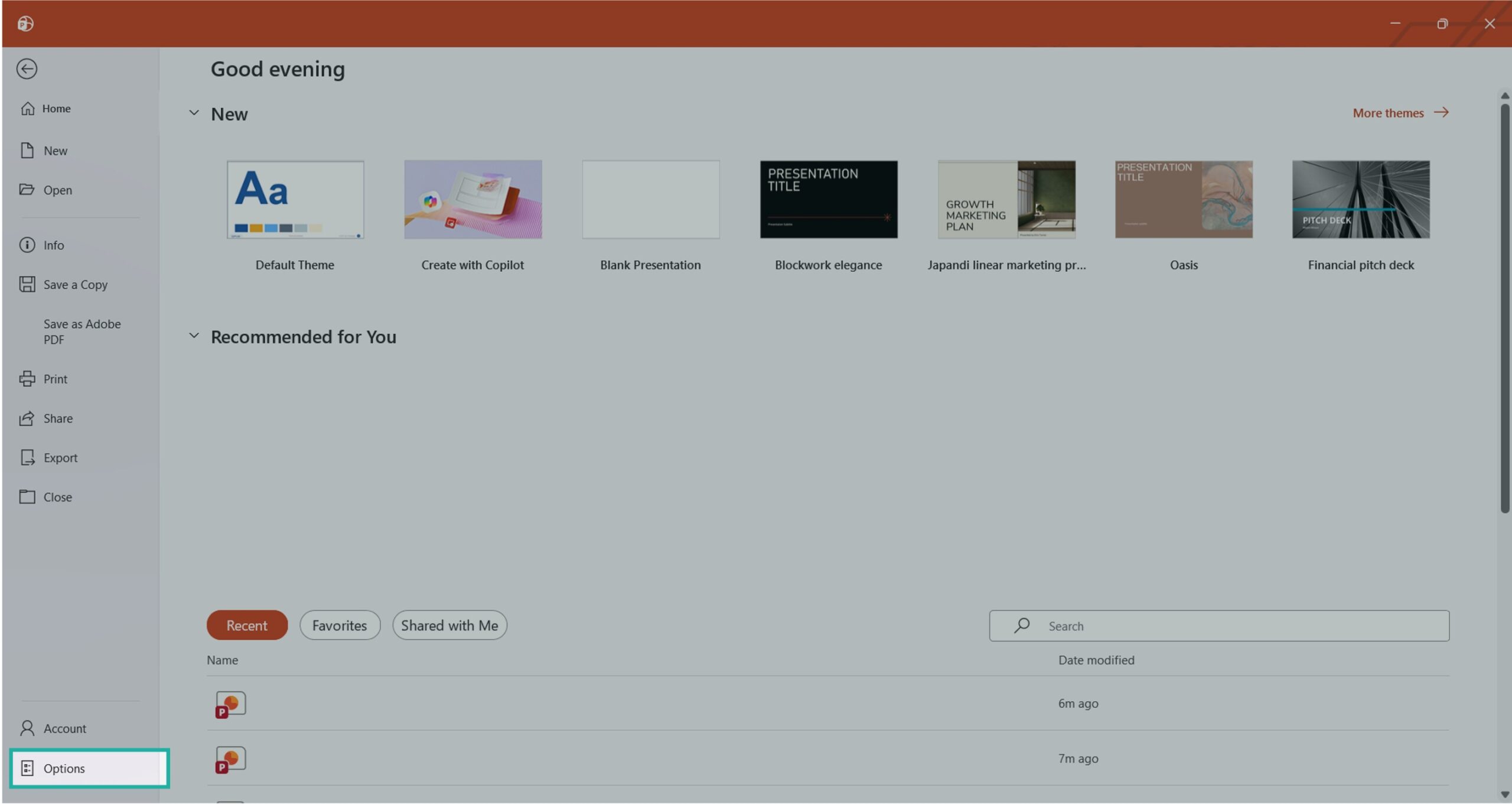
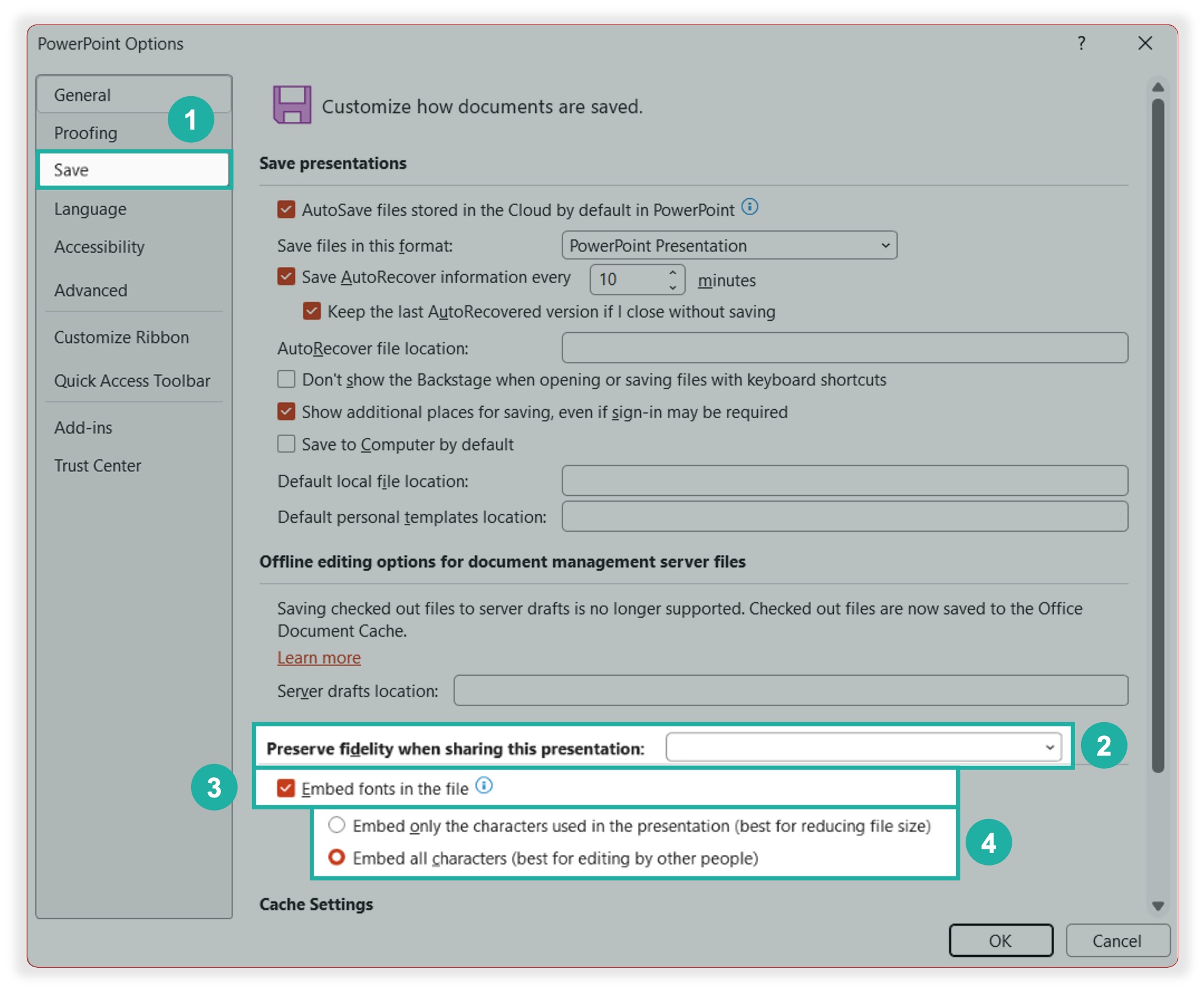
Enable font embedding
- In the PowerPoint Options dialog, click Save in the left panel.
- Scroll down to the section labeled Preserve fidelity when sharing this presentation and select your file name in scrolldown box.
- Check the box that says Embed fonts in the file.
- Choose between two sub-options:
- Embed only the characters used in the presentation – smaller file size, but limits editing on the recipient’s end
- Embed all characters – larger file, but anyone can edit the presentation fully using those fonts
How to embed fonts in PowerPoint on Mac
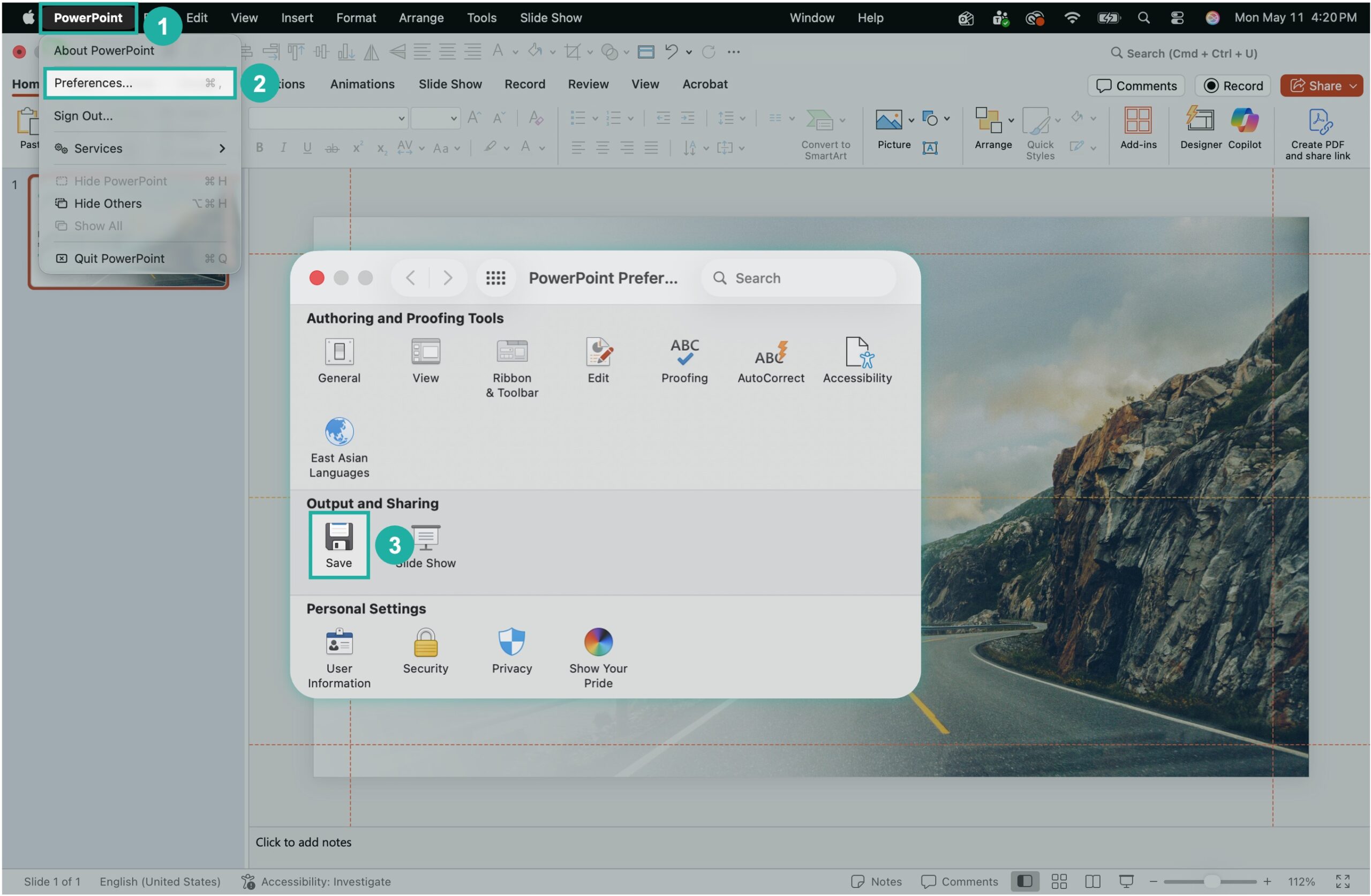
- Go to PowerPoint in the top menu bar (not File).
- Select Preferences.
- Click Save.
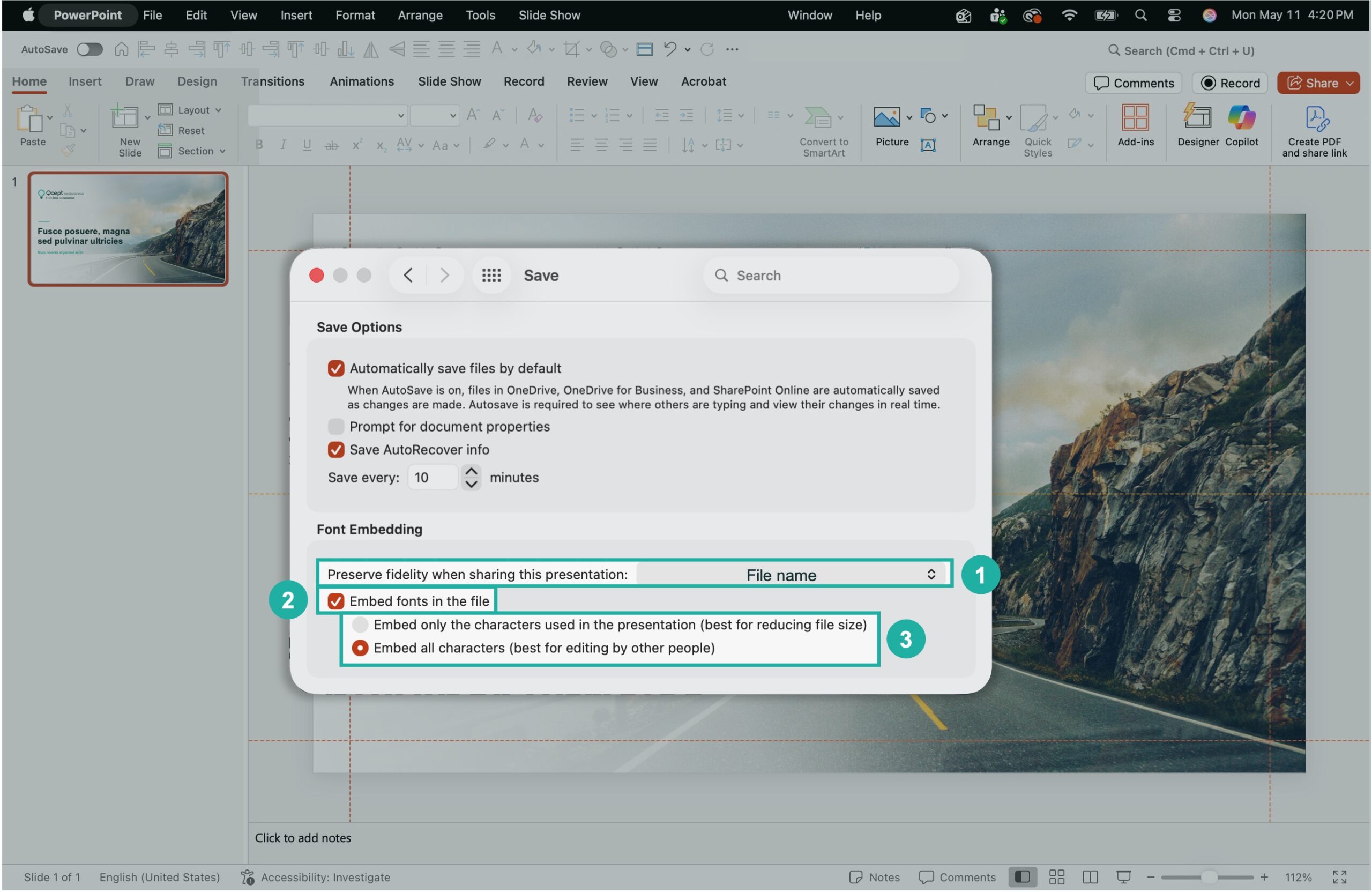
- Go to the Font Embedding section under Preserve fidelity when sharing this presentation and select your file name from the dropdown.
- Check the box for Embed fonts in the file.
- Choose between two sub-options:
- Embed only the characters used in the presentation – smaller file size, but limits editing on the recipient’s end
- Embed all characters – larger file, but anyone can edit the presentation fully using those fonts
Now close the dialog box, and your presentation will now retain its fonts across devices.
Embed only characters used vs. embed all characters: which should you choose?
This question comes up every time, and the answer depends on how the file will be used after you send it.
Embed only the characters used creates a smaller file. If your deck uses only uppercase letters and numbers from a custom font, only those glyphs get embedded. This works perfectly when the deck is going out for viewing only. A client who just needs to open and read it will see everything correctly.
The risk: if they try to edit text using that font, they might not have the full character set. They could hit a letter that was not embedded, and it will render incorrectly or fall back to a default font.
Embed all characters packs the full font file. Larger file size, but the deck is fully editable by anyone who opens it. This is the right choice if the recipient is a colleague who will be working on the file, or if there is any chance they will need to add or edit text.
For external sharing with clients, embed only the used characters. For internal handoffs where editing is expected, embed all characters.
Why is my PowerPoint file so large after embedding fonts?
Embedding fonts increases file size, and some fonts are heavy. A display font with multiple weights and extended character sets can add several megabytes to your file.
If file size is a concern, a few things help:
Compress images before embedding fonts. Images are almost always the bigger culprit. Go to File > Compress Media or use the image compression option in picture formatting to reduce image weight first.
Use “embed only characters used” where possible. As described above, this significantly reduces how much font data is added.
Subset selectively. If your deck uses three fonts, consider which ones actually need embedding. A standard font like Garamond or Georgia may already be installed on most machines your audience uses. Only embed the custom or uncommon ones.
What fonts cannot be embedded in PowerPoint?
Not all fonts support embedding. Font files include licensing flags set by the type foundry, and some foundries explicitly restrict embedding.
There are four common embedding permission levels:
Editable embedding allowed: The font can be embedded and recipients can edit documents using it. This is the most permissive setting.
Print and preview only: The font can be embedded for display and printing, but not for editing. Recipients can view the deck correctly, but cannot type using that font.
No embedding: The font cannot be embedded at all. PowerPoint will either skip it silently or warn you. If this happens, the recipient’s machine will substitute the font with whatever it has available.
Restricted license: Similar to no embedding, with additional usage constraints.
How do you know which category your font falls into? Windows has a built-in tool. Open the Font Viewer (search for the font name in Windows search, open the font file), and the embedding permissions are listed under the file properties. On Mac, Font Book does not display this directly, but third-party tools like FontExplorer X or Font File Browser can show licensing flags.
Google Fonts, in general, are released under the SIL Open Font License and support full embedding. If you are using a commercial font from a foundry, check the license documentation.
What happens when a font cannot be embedded?
PowerPoint will substitute it. The fallback behavior depends on the version of PowerPoint and the operating system, but typically it defaults to a similar-looking system font. That “similar-looking” part is doing a lot of work in that sentence and rarely delivers.
You might see Calibri appear where your sans-serif custom font should be. Or Arial where your geometric display font was. The spacing breaks. The hierarchy collapses. The deck looks like it was built differently from the ground up.
When a font cannot be embedded, the practical options are:
Convert the font to a shape or image. For title text or specific typographic elements that are purely decorative, you can convert the text to a shape in PowerPoint (Right-click > Format Shape or use the text-to-path workaround through Inkscape or Illustrator). The text becomes a vector object and is no longer dependent on the font being installed.
Export to PDF. PDF embeds all fonts by default during export, regardless of PowerPoint’s embedding restrictions. If the deck is going out for viewing only and does not need to be editable, PDF eliminates the font problem entirely.
Use a licensed font that permits embedding. If the design has not been locked in yet, switching to a font with permissive embedding rights solves the problem upstream.
How to check if fonts are embedded in a PowerPoint file
There is no one-click font check inside PowerPoint itself, but there is a practical workaround.
Method 1: Open the file on a different computer that does not have your custom fonts installed. If the fonts render correctly, they are embedded.
Method 2: Rename your .pptx file to .zip, extract it, and open the ppt/fonts folder. Embedded fonts will appear as files inside that folder. If the folder is empty or does not exist, no fonts are embedded.
This second method works because .pptx files are just ZIP archives containing XML files and assets. The font data, when embedded, lives in ppt/fonts as .fntdata files.
Best practices for font management in PowerPoint decks
Embedding fonts is the last step in a workflow that should start much earlier.
Stick to a short font list. Complex presentations rarely need more than two or three fonts. A display font for titles, a readable font for body text, and possibly a monospaced font for data or code references. Every additional font is another potential point of failure.
Test on a clean machine before any important share. If you have a colleague who does not have your custom fonts installed, send them the file and ask them to open it. This takes five minutes and catches problems that would otherwise surface at the worst possible moment.
Keep a PDF version for external sharing. PDF is the safe default when you do not know what machine the recipient is using. It removes font dependency entirely and locks the visual exactly as designed.
Document your fonts. If you are working with a team or handing a template off to someone else, include a font list in your file notes or in a separate document. Specify the font name, the source, and the license type. This prevents the next person from discovering the problem six months later.
Do not use system-only fonts for client-facing work. Fonts that come pre-installed on Windows but not Mac (or vice versa) are a silent risk. A font like Segoe UI is common on Windows but absent from Mac. If a cross-platform audience is opening your deck, either embed it or replace it with a cross-platform alternative.
The conclusion: real problem behind the font problem
Here is the thing. Font embedding is not really a technical issue. It is a communication infrastructure issue.
When a presentation breaks visually on another machine, it creates friction right at the moment when clarity matters most. A client opening your deck before a call, a prospect reviewing your proposal, a partner sharing your slides with their leadership team. These are high-stakes moments. A broken layout is not just an aesthetic inconvenience. It undermines the impression you worked to build.
Most presentation problems trace back to workflow gaps. Someone did not embed fonts. Someone shared the wrong file version. Someone used a system font that looked fine on their screen and terrible on the recipient’s. None of these are hard to fix. But they require intentionality about the file from the start, not just at the design stage.
Embedding fonts is a two-minute task. The cost of skipping it can be much higher.


We use storytelling and design to build high impact presentations for leading brands
PowerPoint design
services and outsourcing
Enterprises, analysts, consultants
Investor pitches
and fundraising narrative
Founders, fund managers
Sales presentations, proposals, and collaterals
Sales & marketing teams
PowerPoint template and visual slide bank
Enterprises, advisory & research firms
CXO presentations
and thought leadership
IT-BPO services & consulting firms
Financial, ESG,
and annual reports
Financial services, large enterprises
Training – PowerPoint design and visualization
Sales team, analysts, consultants
Conference and event presentations
Keynote speakers, event managers