Six PowerPoint hacks every consultant, analyst, and strategy team should know
July 1, 2026 | 5 min read
This post is for consultants, analysts, and strategy teams who build decks daily and want to stop losing time to templates, backgrounds, and formatting they redo by hand every time.
You have probably been using PowerPoint for years. But are you using it efficiently?
Consultants. Analysts. Strategy teams.
These are people who practically live inside PowerPoint. Client decks, proposal decks, leadership updates, research reports, board packs, sales enablement slides. Something is always due, and somehow it is always due sooner than expected. A truly beautiful little workplace tradition.
The pressure is not just to finish the deck. It has to look clean. It has to follow the brand. It has to be easy to share. It has to make sense to someone who will probably read it five minutes before a meeting.
And yet, many professionals are still doing small things the slow way.
Still searching through SharePoint for the latest template. Still switching between five ribbon tabs to find one command. Still cleaning logo backgrounds manually. Still sending oversized PowerPoint files and hoping the email does not bounce back like a personal insult.
This is not a skill problem.
Consultants and analysts are sharp people. The issue is simpler. PowerPoint became one of those tools everyone assumed they already knew. You used it in school. You used it in your first job. You kept using it for years. At some point, it became background knowledge.
And that is where the gaps stay.
Here are 6 PowerPoint tips and hacks you can incorporate into your daily workflow:
1. Set your corporate PowerPoint template as the default
Stop searching for the same template before every presentation.
For many consulting and corporate teams, every presentation starts the same way, opening SharePoint, Teams, or a shared drive to locate the latest approved template.
It may only take a minute or two, but repeated across dozens of presentations every month, those minutes quickly become hours.
Instead, configure your organization’s branded template as PowerPoint’s default template. Every new presentation automatically opens with your approved fonts, colors, slide layouts, and branding already applied.
This ensures:
- Consistent branding across presentations
- Faster presentation creation
- Reduced risk of using outdated templates
- Better compliance with corporate design standards
For teams that produce presentations every day, this is one of the simplest productivity improvements you can make.

2. Export your presentation as a high-resolution video
Your video editor might already be PowerPoint.
PowerPoint isn’t just for slide presentations.
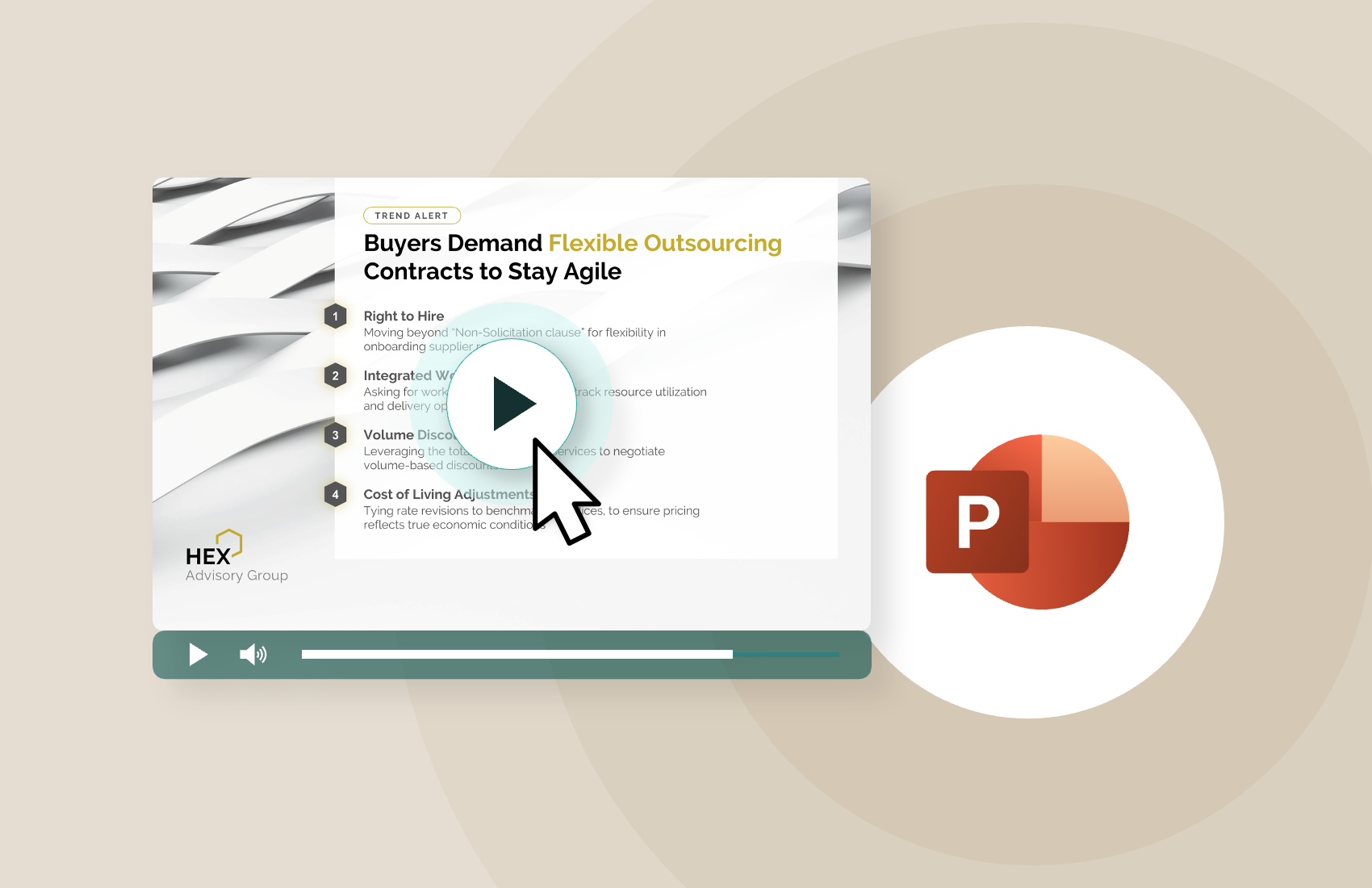
It can also export presentations as high-quality MP4 videos complete with animations, transitions, narration, and slide timings.
This makes it useful for creating:
- Client walkthroughs
- Internal training videos
- Product demonstrations
- Investor updates
- Sales enablement content
Instead of recreating slides inside video editing software, simply build your presentation once and export it directly as a video.
For many business presentations, PowerPoint provides everything needed to create professional visual content without additional software.
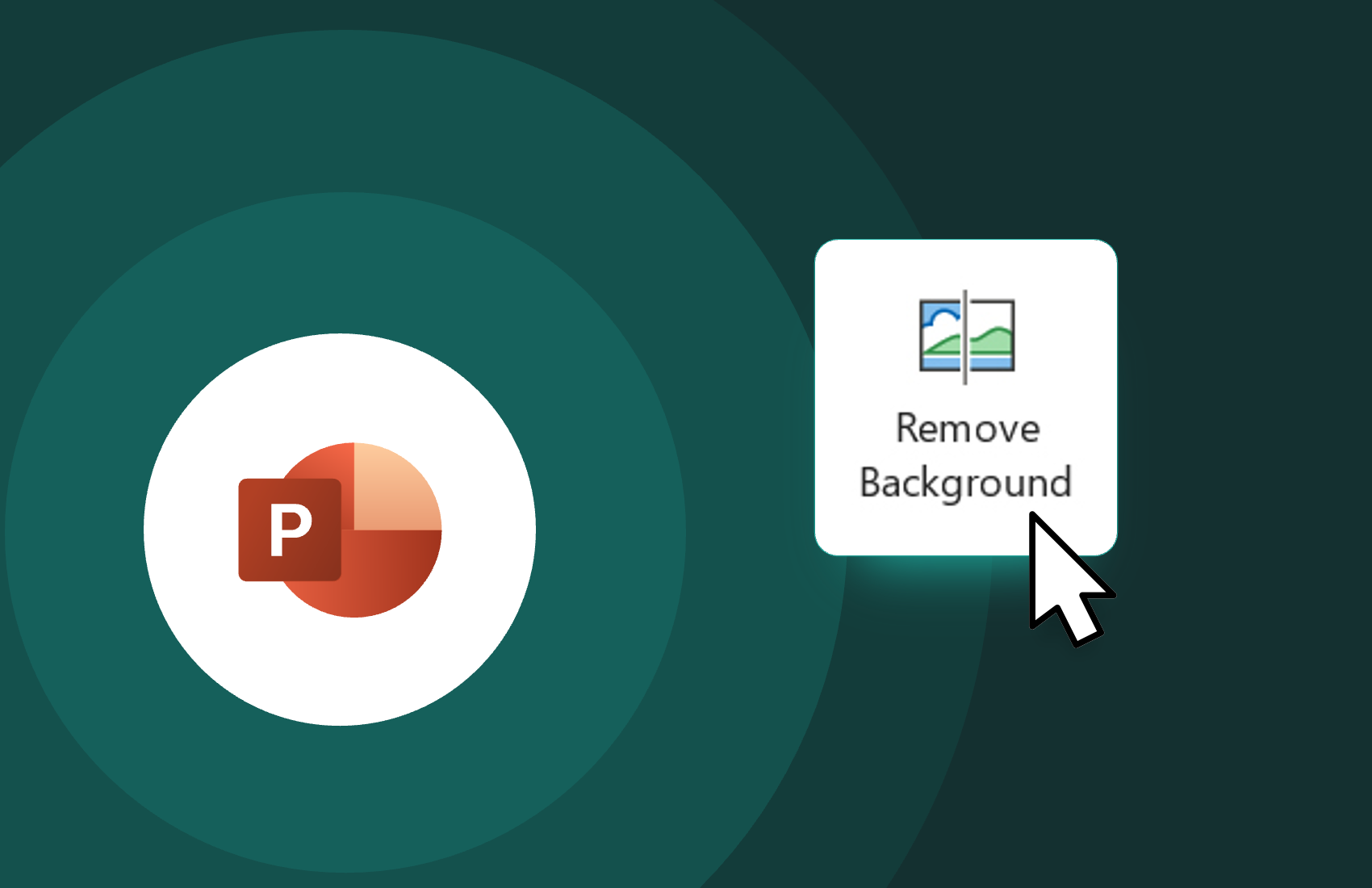
3. Remove image backgrounds without leaving PowerPoint
Clean up logos and images in just one click.
Anyone who works with client logos knows the frustration.
You download a logo only to discover it comes with a white background that clashes with your presentation.
Many users immediately switch to Photoshop or an online background remover.
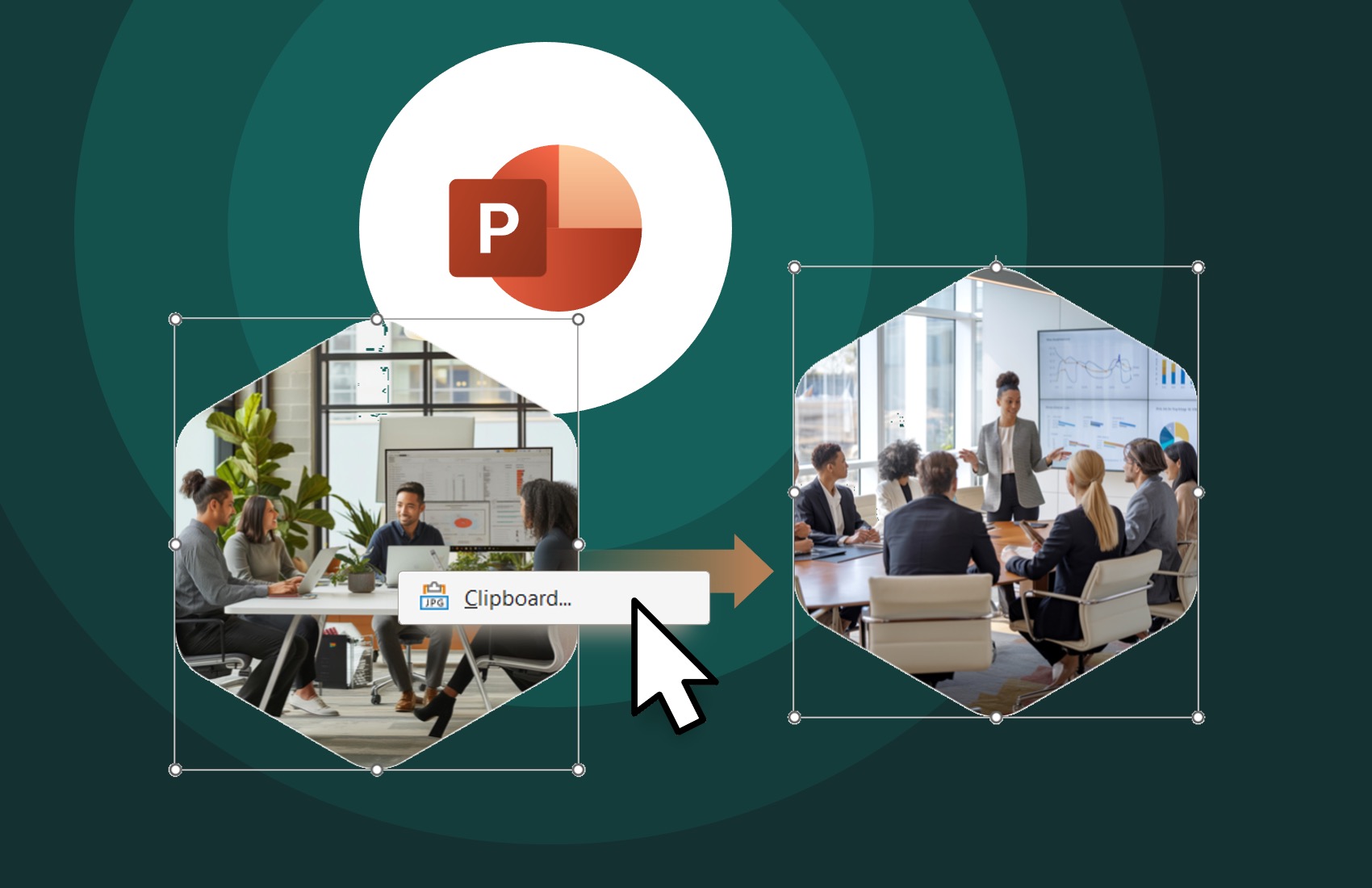
PowerPoint already includes a built-in Remove Background feature that works surprisingly well for logos, icons, and many product images.
Within seconds you can:
- Remove white backgrounds
- Isolate objects
- Clean up brand assets
- Maintain a polished slide design
It may not replace professional image editing software for complex graphics, but for everyday presentation work, it is often all you need.
4. Customize the quick access toolbar (QAT)
Stop jumping across the ribbon for frequently used commands.
Every PowerPoint user has a handful of commands they use repeatedly.
Align.
Format Painter.
Selection Pane.
Paste Special.
Distribute Objects.
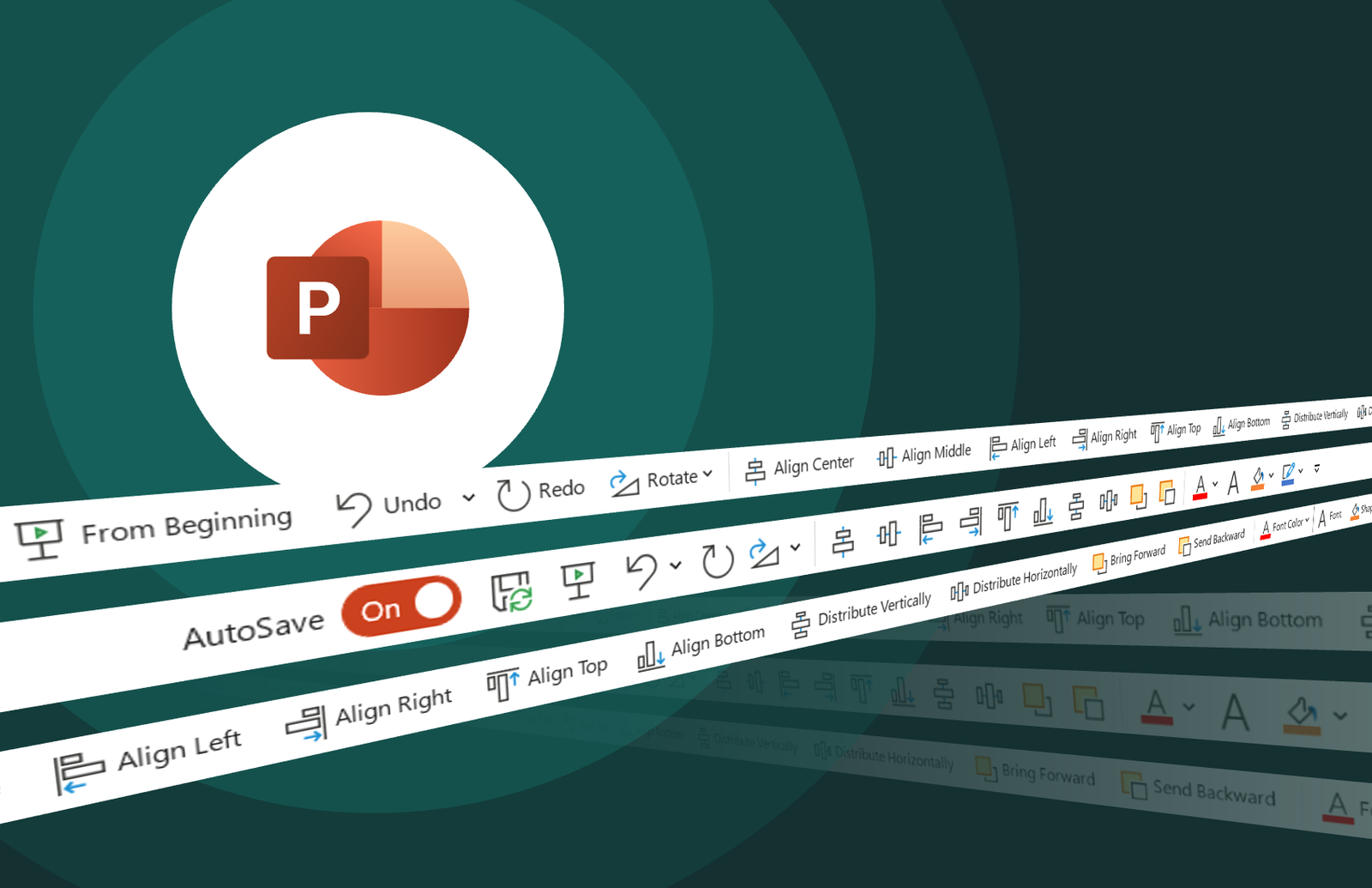
The problem is that these tools are spread across multiple ribbon tabs, forcing users to constantly switch between Home, Shape Format, Picture Format, Review, and other menus.
The Quick Access Toolbar allows you to pin your most frequently used commands in one permanent location.
With a customized QAT, repetitive formatting becomes significantly faster because your favorite tools are always one click away.
Small improvements like this compound over hundreds of presentations.
5. Convert bullet lists into individual boxes
Transform plain text into structured visual layouts.
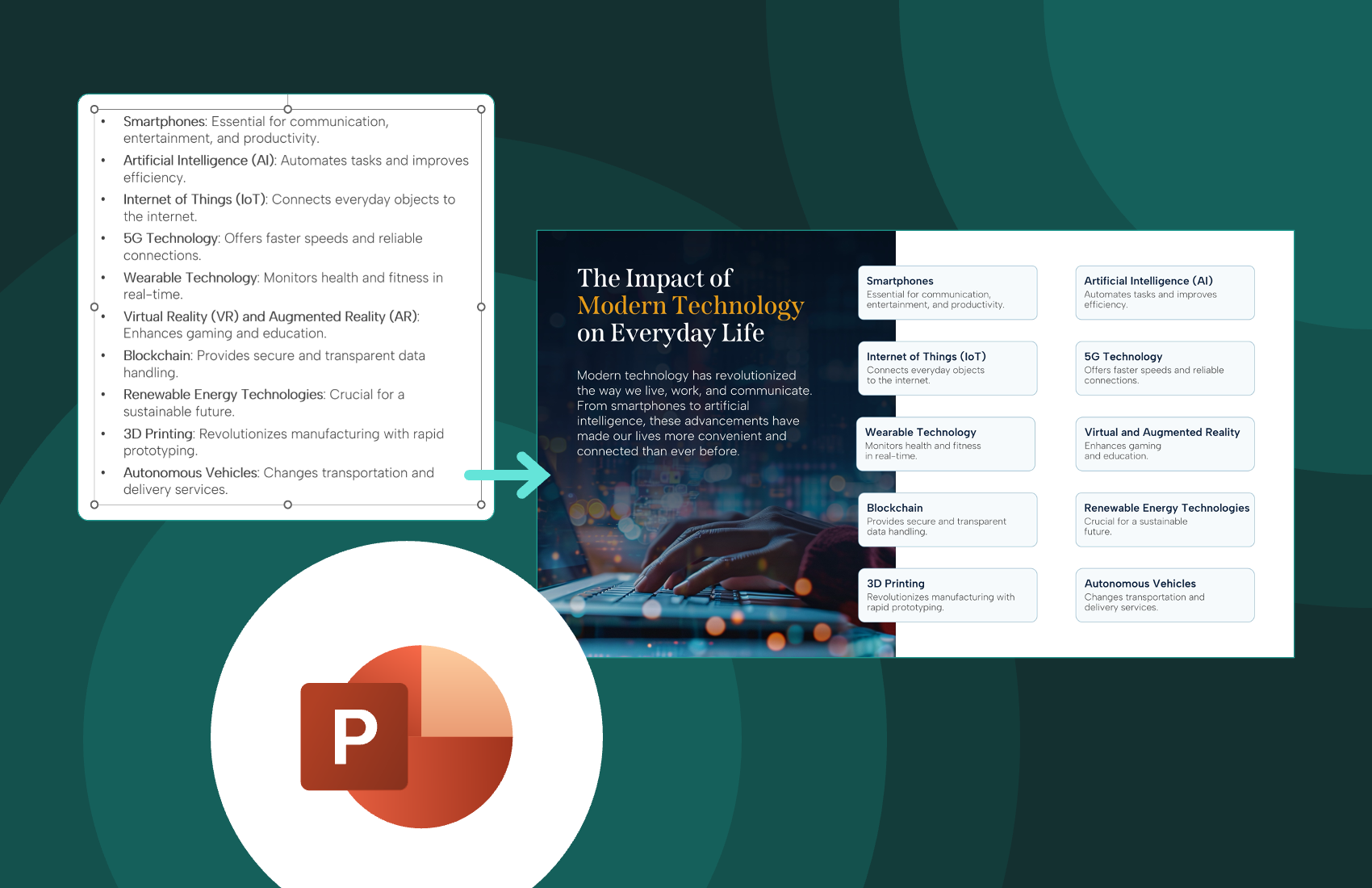
Consultants often receive content in the least presentation friendly format possible:
Long bullet lists.
The manual approach usually involves copying every bullet into separate text boxes, a repetitive task that consumes valuable time.
PowerPoint offers SmartArt and layout tools that can quickly convert structured bullet points into organized visual boxes.
The result is:
- Better readability
- Cleaner slide layouts
- Improved audience engagement
- Less manual formatting
Instead of displaying walls of text, your slides become easier to scan and far more impactful during presentations.
6. Reduce your PowerPoint file size
Large presentations don’t have to be large.
Presentation files grow quickly.
High-resolution images, embedded media, duplicated graphics, and copied content can easily produce presentations exceeding 50MB or even 100MB.
Large files create problems:
- Slow loading
- Difficult email sharing
- Longer upload times
- Poor collaboration
PowerPoint includes built-in compression tools that significantly reduce file size while preserving presentation quality.
Optimizing images and removing unnecessary data can dramatically improve performance without compromising visual impact.
For client-facing presentations, smaller files also create a smoother sharing experience.

Small PowerPoint improvements lead to big productivity gains
Most professionals don’t struggle because they lack PowerPoint skills.
They struggle because they’ve been using the same workflow for years.
When deadlines are tight and presentations need to be delivered quickly, even saving a few minutes on every deck can make a meaningful difference over time.
These six features aren’t hidden shortcuts reserved for PowerPoint experts.
Their practical capabilities already available inside the software designed to help professionals work faster, maintain consistency, and spend less time on repetitive formatting.
Whether you’re a consultant building client decks, an analyst presenting insights, or part of a strategy team preparing executive presentations, learning these features can make PowerPoint feel like an entirely different tool.
The conclusion: Take your PowerPoint skills further
PowerPoint is one of the most used tools in consulting, research, and strategy work. But because it is so familiar, most people stop exploring it.
That is where the missed efficiency sits.
The professionals who get faster at PowerPoint are not always using advanced design tricks. Often, they simply know where the useful features are hidden.
Set your default template. Build your QAT. Remove messy backgrounds. Convert content faster. Export smarter. Compress before sharing.
Small habits. Better decks. Fewer painful workarounds.
And maybe, just maybe, one less person digging through SharePoint for a template that should have opened by default.

We use storytelling and design to build high impact presentations for leading brands
PowerPoint design
services and outsourcing
Enterprises, analysts, consultants
Investor pitches
and fundraising narrative
Founders, fund managers
Sales presentations, proposals, and collaterals
Sales & marketing teams
PowerPoint template and visual slide bank
Enterprises, advisory & research firms
CXO presentations
and thought leadership
IT-BPO services & consulting firms
Financial, ESG,
and annual reports
Financial services, large enterprises
Training – PowerPoint design and visualization
Sales team, analysts, consultants
Conference and event presentations
Keynote speakers, event managers