LinkedIn B2B carousel design examples, all made in PowerPoint
June 11, 2026 | 6 min read
This post is for B2B marketing teams and brand managers who want to see what LinkedIn carousel design actually looks like when it is built for an enterprise audience, not a consumer one.
Most B2B carousels on LinkedIn look the same.
A big headline. A few boxes. Some icons. A chart copied from a report. And a final slide asking people to “follow for more insights,” because apparently that line has survived every content review in history.
Carousels can do more than fill a content calendar.
For B2B marketing teams, carousels are used to explain complex topics, turn research into something people actually read, and build recognition over time. The challenge is not creating one carousel. The challenge is creating carousels that look considered, stay on-brand, and can still be edited later without depending on a designer for every small change.
That is why these carousel design examples were built in PowerPoint. It gives marketing teams something genuinely useful: a design format that is sharp, editable, and easy to reuse. And because the design is built from scratch, it does not carry the look of a Canva or Envato template that half your competitors are also using.
Why PowerPoint works for B2B carousel design
A lot of teams assume good carousel design requires specialist software. For B2B teams, the real question is different.
Can the team edit the carousel after delivery? Can they update a number without breaking the layout? Can they reuse the same format for a post next week without starting over?
PowerPoint handles all of this well. When built properly, a PowerPoint carousel can carry strong layouts, custom visuals, image treatments, data slides, and clean typography. And the file stays editable, which matters more than most people realize until they need to make a change at short notice.
1. Educational carousels for complex topics
Some B2B topics are hard to explain in a single post. AI terminology, enterprise technology, procurement models, and consulting frameworks need more room than one image can give them.
A carousel gives the topic structure. Instead of compressing everything into one slide, the idea breaks into smaller parts. Each slide explains one thing. The reader moves through it step by step.
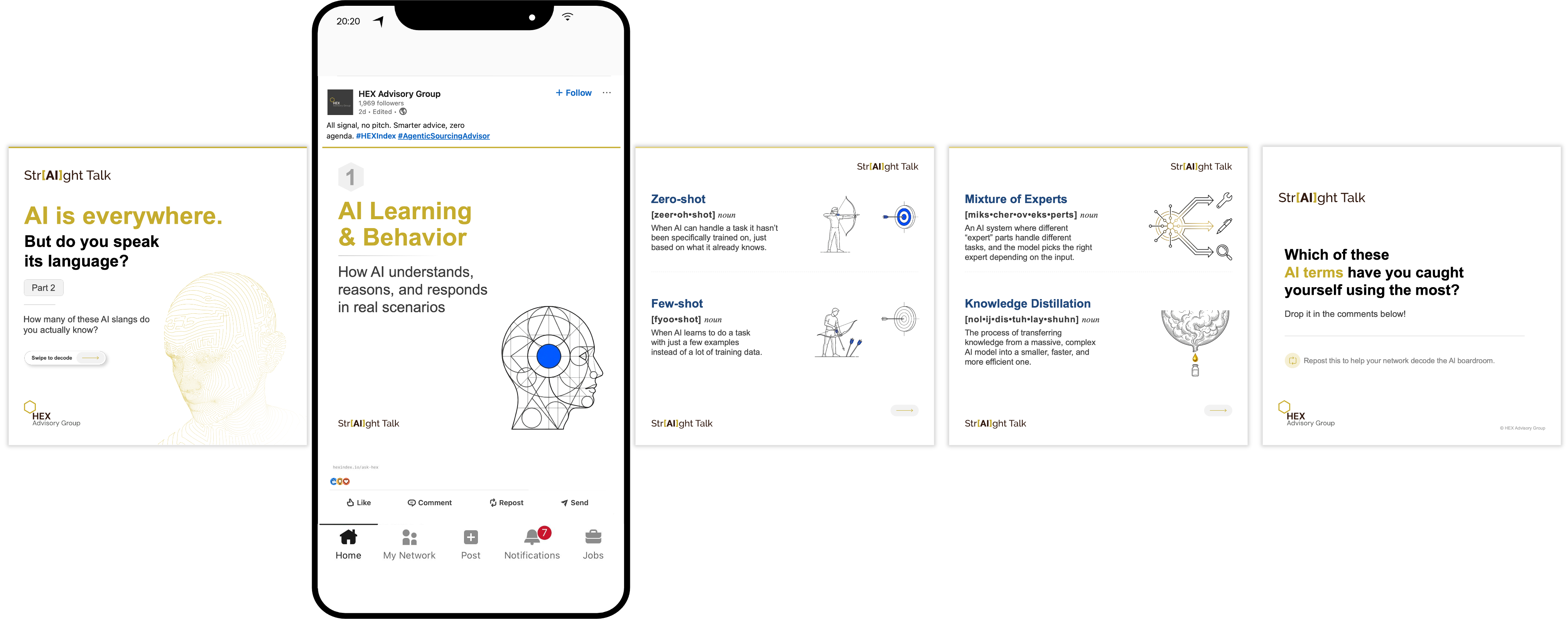
The HEX Advisory Group “StrAIght Talk” series is a good example. HEX Advisory Group runs an ongoing LinkedIn series breaking down AI terms for an enterprise audience that does not always come from a technical background. Instead of a standard listicle, the carousel was designed like a dictionary: each card shows the term, how it is pronounced, what type of word it is, and what it actually means in plain language.
The layout looks like a reference document, because that is what the content is. The result is a carousel that does not feel like a social post. It feels like something worth saving.
A good educational carousel keeps one idea per slide, uses short sentences, gives each concept a visual anchor, and ends with a clear point. The goal is not to show how much the brand knows. The goal is to make the reader feel like they understood something without having to work for it.
2. Carousels for brand moments
Not every B2B carousel needs to be about data or business problems. Sometimes a brand needs to say something that is a little more human.
The Opus Mother’s Day carousel is a good example of how this can work without the design feeling out of place. Opus is an IT consulting firm working with payment providers and fintechs. The carousel paid tribute to mothers while connecting it to what Opus is actually known for: domain-native engineering.
Each slide moved one part of the same idea forward: she understood the domain. She understood the context. She understood the engineering. That is a mother. Five slides, one clear line of thought.
The design used warmer photography, softer language, and copy that felt personal while still sitting inside the Opus brand. A generic celebration post could have worked. The narrative format gave Opus a way to make the point without spelling it out.
A carousel like this should feel warm, but still look designed. That balance is harder to get right than it sounds.

3. Carousels built around a visual idea
Some topics do not come with an obvious image. Software asset management, hidden licensing risk, platform adoption trends: none of these suggest a natural visual direction. You cannot just pick a stock photo and call it done.
That is where building the design around a concept helps. Instead of decorating the slide with something unrelated, the carousel finds a visual that actually matches the argument.
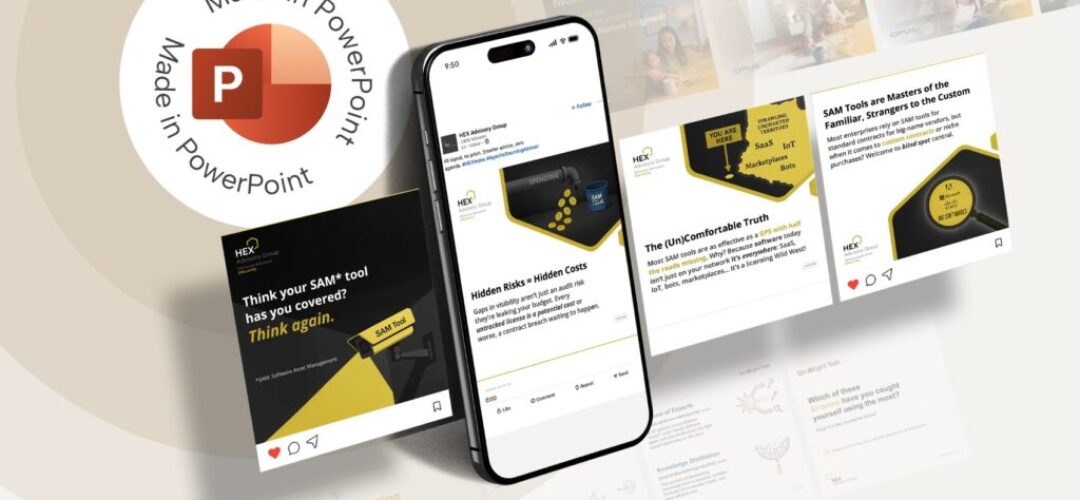
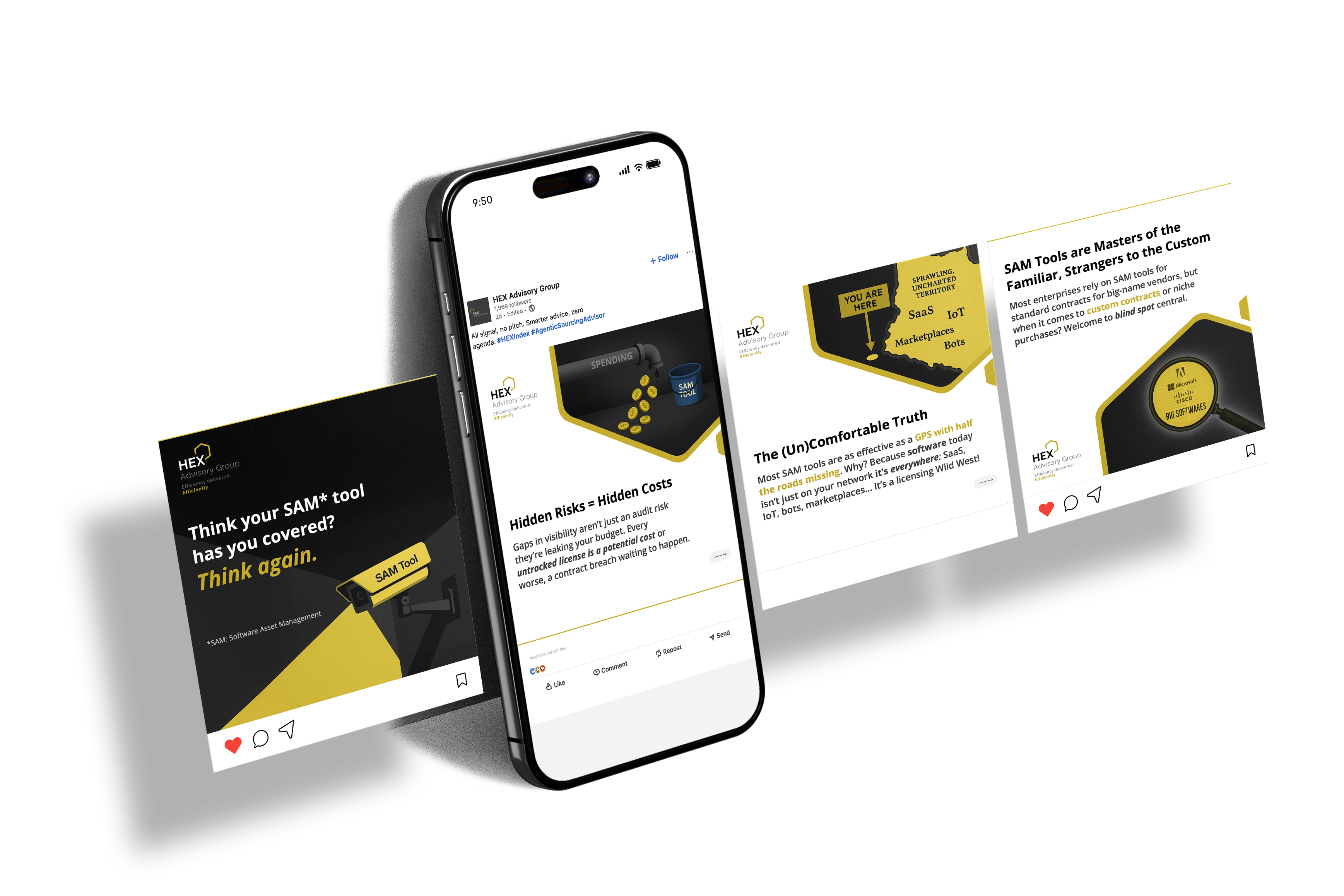
The HEX Advisory Group SAM tool carousel is a clear example. The whole series was built around one question: do enterprise companies actually know what software is running on their networks? According to HEX Advisory Group research, most do not.
The design needed to reflect that. Dark background, a surveillance-camera graphic, headlines that push rather than explain (“Think your SAM tool has you covered? Think again.”), bold yellow type that reads like a flag. The visual choices matched what the content was saying.
The same slides in a standard clean template would have softened the message completely. The design is not decoration here. It is part of the argument.
4. Data carousels for research and reports
Reports and research papers often have strong findings buried inside a format that is too detailed for LinkedIn. A carousel can pull out the clearest points and present them in a way people can follow.
The mistake is treating a carousel like a report page. They are not the same thing. A report can carry a lot of detail. A carousel needs someone to understand the point quickly, without decoding anything.
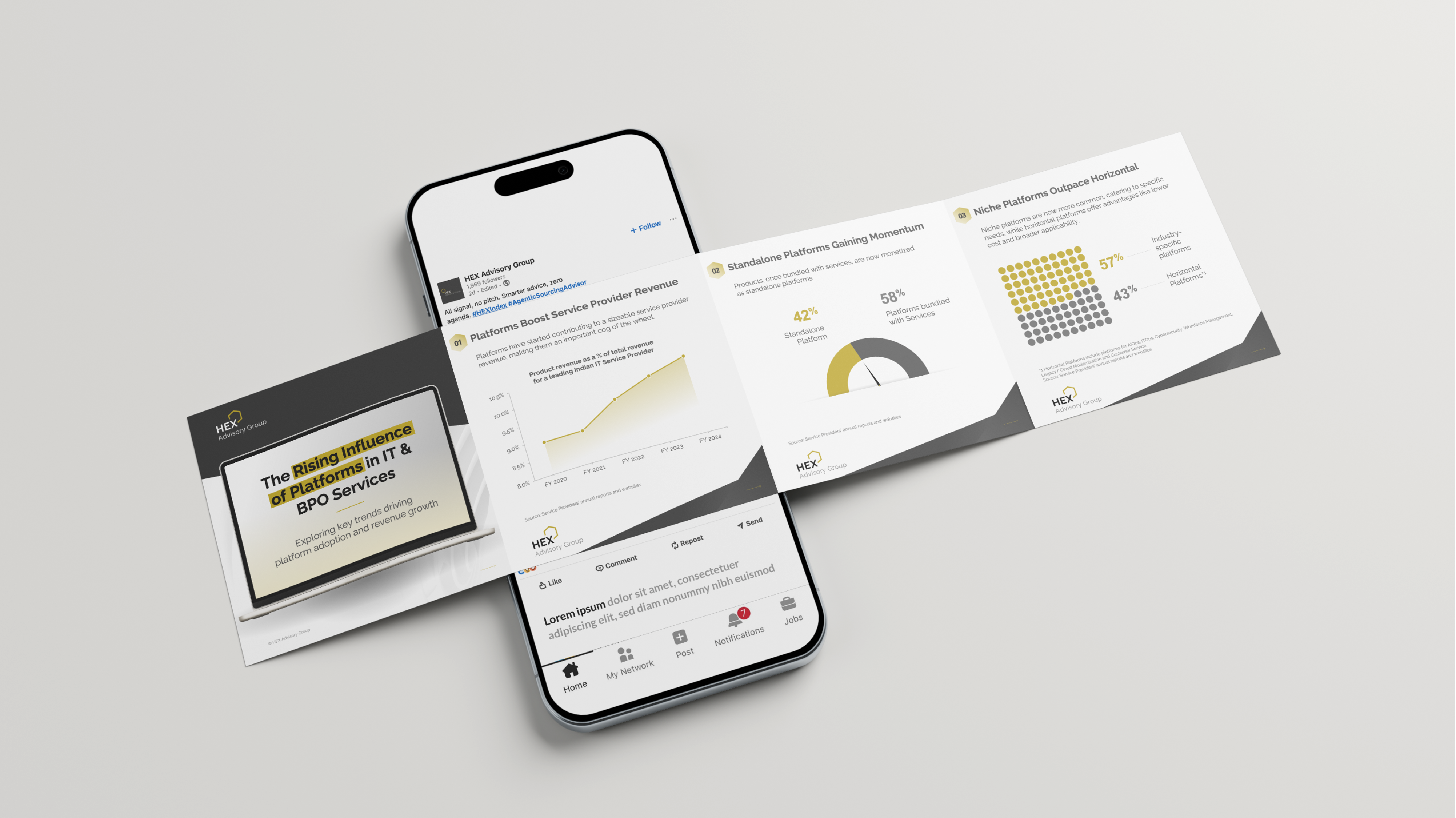
The HEX Advisory Group Platforms series was built around this. The content covered platform revenue trends, how standalone platforms compare to bundled ones, and where niche platforms are gaining ground. The numbers were the story.
So the carousel was built around the charts: a line chart, a gauge, a dot-matrix comparison. The text around each chart explained what to look at. The data did the actual work. This is the opposite of how most carousels are put together, where the copy is the point and the visual is background. Here, it is the other way around.
One piece of research can feed multiple carousels. A key findings post. A chart-focused post. A breakdown of what the numbers mean. That gives the content a longer shelf life without repeating the same thing.
Editable does not mean basic
There is a common assumption that if a file is editable, the design must be simple. That is not how it works.
A PowerPoint carousel can carry complex layouts, layered visuals, image treatments, charts, and careful typography. The difference is that the file is not locked. The marketing team can go in and change a number, update a line of copy, or adapt the format for a new post without the design falling apart.
For teams that publish regularly, this matters. Things change. A stat gets updated. A message shifts. Someone needs a new version by tomorrow. An editable file handles all of that without starting a new project each time.
The conclusion: What a good B2B carousel actually needs
A good carousel makes the reader understand something, feel something, or remember something. The design should support that, not work against it.
Before building a carousel, it is worth being clear on a few things: what is the one point this post needs to make, who is reading it, what should the first slide feel like, and can someone follow the whole thing without needing to read the caption first.
And one more: can the team update this file themselves when something changes?
A carousel that works once is fine. A carousel format that works across a whole content program is much more useful.
We use storytelling and design to build high impact presentations for leading brands
PowerPoint design
services and outsourcing
Enterprises, analysts, consultants
Investor pitches
and fundraising narrative
Founders, fund managers
Sales presentations, proposals, and collaterals
Sales & marketing teams
PowerPoint template and visual slide bank
Enterprises, advisory & research firms
CXO presentations
and thought leadership
IT-BPO services & consulting firms
Financial, ESG,
and annual reports
Financial services, large enterprises
Training – PowerPoint design and visualization
Sales team, analysts, consultants
Conference and event presentations
Keynote speakers, event managers