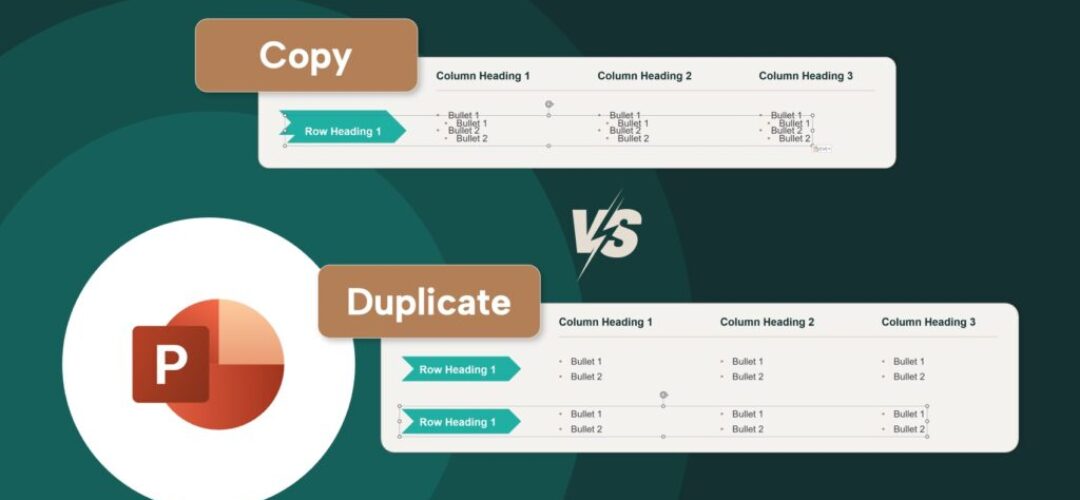
The difference between copy and duplicate in PowerPoint
June 22, 2026 | 7 min read
This post is for consultants and analysts who keep losing time to position shifts and formatting drift every time they copy-paste shapes across a structured deck.
It started at 11:47 pm on a Tuesday
A senior associate at a strategy firm is building the final deck for a board presentation. Forty-two slides. Client logo on every page. Custom chevron labels down the left rail on six table slides.
The partner wants two more rows added to each table. The associate does what any reasonable person would do: selects the chevron shape, hits Ctrl+C, clicks on the next slide, hits Ctrl+V.
The shape lands in the wrong position. The formatting looks slightly off. The font size has shifted. The bullets have lost their indent. She fixes it manually, moves to the next slide, and does it again. Six slides, two rows each. Twelve copy-paste cycles. It is 1:15 am by the time she emails the deck.
This is not a rare story. It is Tuesday night in every consulting firm, every research house, every agency that lives inside PowerPoint.
The problem is not the shortcuts. It is what they actually do.
Most PowerPoint users treat Ctrl+C / Ctrl+V and Alt+Ctrl+drag as interchangeable. They are not. The difference between them is small in theory and enormous in practice, and it compounds across every deck a consultant or analyst touches.
What copy-paste does (and why it creates problems)
When you copy a shape in PowerPoint and paste it, the shape goes through the clipboard. That sounds harmless. It is not.
The clipboard serializes the object, which means it converts your shape into a temporary format, holds it, and reconstructs it on paste. In that reconstruction, several things can go wrong:
Position resets. PowerPoint pastes the object at a default offset from the original, typically a few pixels down and to the right. If you paste onto a different slide, the position depends entirely on where PowerPoint decides to put it, not where the original sat.
Formatting drift. If the destination slide has a different theme, or if the clipboard has been touched by another application between copy and paste, subtle formatting changes can creep in: font size rounding, line spacing, bullet indent shifts.
Text box behavior changes. Shapes containing text occasionally repaginate or resize on paste, especially if the source and destination slides have different layout masters.
It is also just slower. Select, copy, navigate, click, paste, reposition, check alignment. That is six to seven discrete actions per duplication.
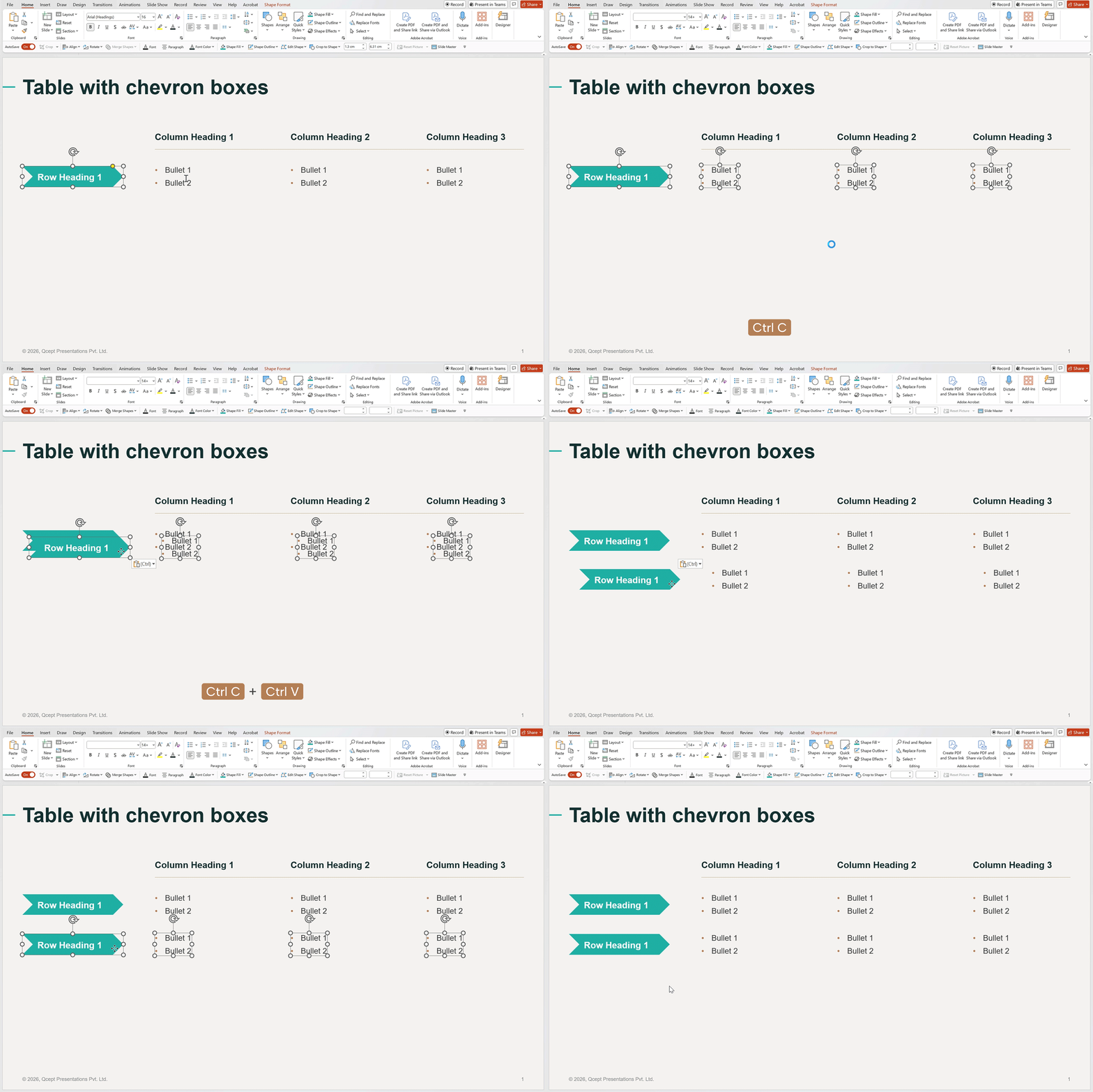
The GIF above shows a chevron row label being copied and pasted. Notice the position offset on paste and the manual repositioning required to get it back into alignment.
What Alt+Ctrl+drag does (and why it is faster)
Hold Alt+Ctrl and drag any shape. PowerPoint creates an exact duplicate in the same operation: same position logic, same formatting, same text behavior. You place it exactly where you want it as part of the drag. There is no clipboard involved.
Position is drag-controlled. You decide where the duplicate lands as you drag. Hold Shift in addition and the movement is constrained to a horizontal or vertical axis, giving you perfectly aligned duplicates in a single motion.
No clipboard contamination. Because the object never goes through the clipboard, nothing outside PowerPoint can interfere with the formatting. What you see is what you get.
One action, not six. Select, drag. Done. The shape is where you want it, formatted correctly, without any additional steps.
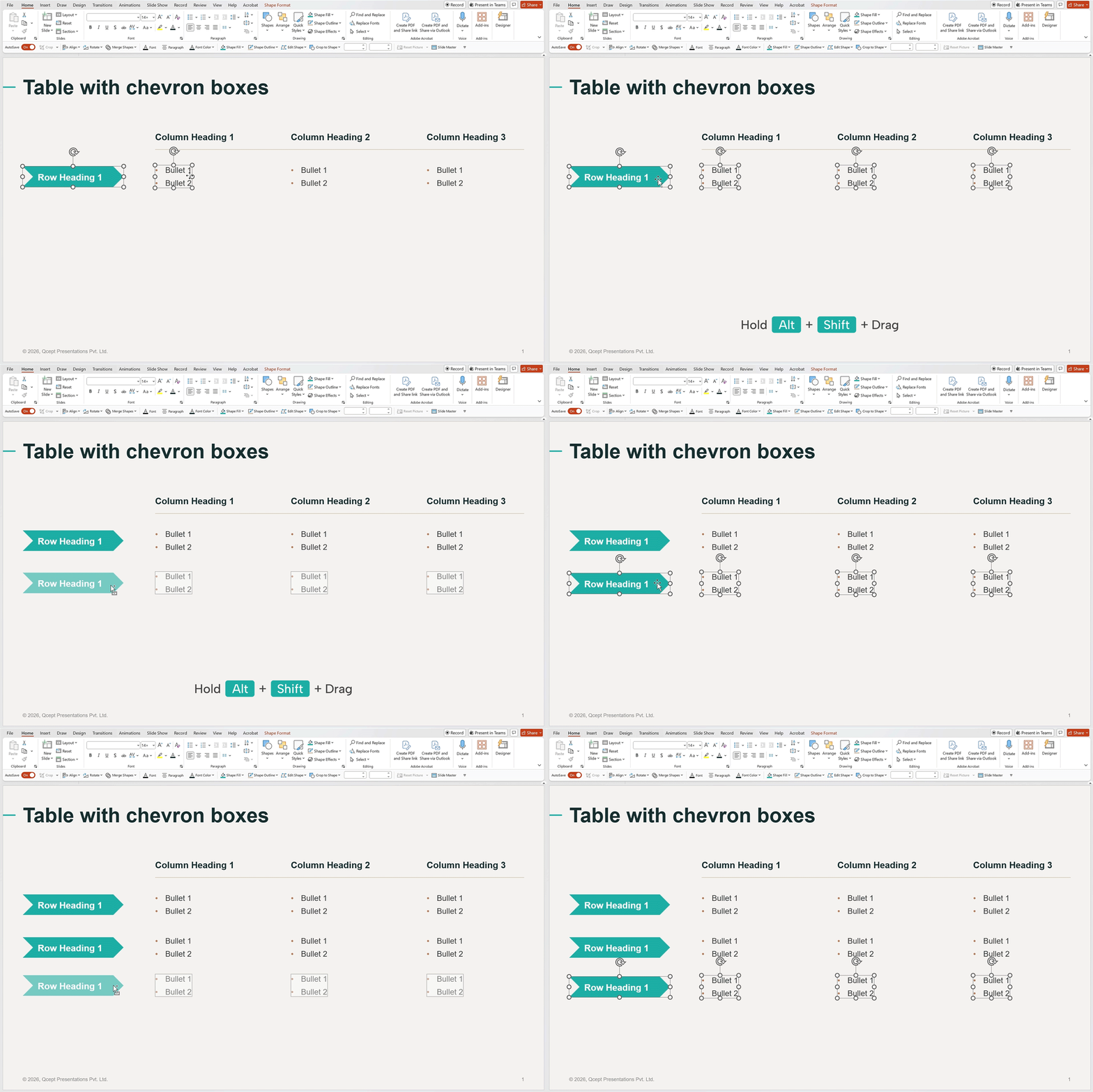
The GIF above shows the same chevron shape being duplicated with Alt+Ctrl+drag. The duplicate lands in the exact position chosen during the drag, with no repositioning needed.
The time math
McKinsey’s research on knowledge worker productivity has consistently found that small friction points in repeated tasks account for a disproportionate share of time lost. A 2023 Asana report found that knowledge workers spend 58% of their working day on coordination and busywork rather than skilled work.
Source: Asana Anatomy of Work Index 2023
The average management consultant spends an estimated 30 to 40 percent of their time on document creation and formatting, according to Deloitte Insights research on professional services workflows.
Source: Deloitte Insights
| Action | Copy-paste | Alt+Ctrl+drag |
|---|---|---|
| Steps per duplication | 6 to 7 | 2 |
| Average time per duplication | 8 to 12 seconds | 2 to 3 seconds |
| Time for 12 duplications | 96 to 144 seconds | 24 to 36 seconds |
| Time saved (12 duplications) | — | 72 to 108 seconds |
Twelve duplications is a conservative count for a single table-heavy slide deck. On a 40-slide deck with structured layouts, a consultant might perform 60 to 80 duplications across a build session. At that volume:
- Copy-paste: 8 to 16 minutes of duplication work
- Alt+Ctrl+drag: 2 to 4 minutes
That is a 6 to 12 minute saving per deck, before accounting for the time spent fixing position errors and formatting drift that copy-paste introduces.
Across three decks a week, across 48 working weeks, that is 864 to 1,728 minutes per year. Somewhere between 14 and 29 hours of time a consultant or analyst spends repositioning shapes that should have landed in the right place the first time.
Why this matters more for consultants and analysts than for most PowerPoint users
The stakes are different in professional services.
A misaligned shape in a board presentation is not an aesthetic problem. It signals that the work was done in a hurry. Clients read visual sloppiness as analytical sloppiness, even when that is not fair. Research from Nielsen Norman Group on document credibility found that visual inconsistency reduces perceived authority and trust, even when the underlying content is strong.
Consultants and analysts also work at volume in a way that most office workers do not. A typical engagement team might produce 15 to 25 slide decks across a project. A research analyst might produce structured content outputs weekly. Every repeated inefficiency in their PowerPoint workflow is not a one-time cost. It is a recurring cost.
The other reason this matters specifically for structured decks is that consultants use custom shape components: chevrons, process arrows, matrix boxes, icon grids, custom table rows. These shapes are designed with precision. When copy-paste introduces a 3-pixel offset or a font size rounding error, the designer either catches it and fixes it (time cost) or does not catch it and sends the deck with an error (credibility cost). Either way, someone pays.
The conclusion: What to actually change in your workflow
The habit shift is small. The friction reduction is not.
Three practical changes:
- Default to Alt+Ctrl+drag for any shape you need to reuse on the same slide. Build table rows, icon columns, process steps, and label systems this way. You will spend no time repositioning.
- Add Shift to your Alt+Ctrl+drag for horizontal and vertical layouts. Alt+Ctrl+Shift+drag constrains movement to one axis, giving you perfectly aligned duplicates without touching the alignment panel.
- Reserve copy-paste for cross-file duplication. If you are moving a shape from one deck to another, copy-paste is appropriate. Within the same file, it is almost never the right tool.
Questions we hear often


We use storytelling and design to build high impact presentations for leading brands
PowerPoint design
services and outsourcing
Enterprises, analysts, consultants
Investor pitches
and fundraising narrative
Founders, fund managers
Sales presentations, proposals, and collaterals
Sales & marketing teams
PowerPoint template and visual slide bank
Enterprises, advisory & research firms
CXO presentations
and thought leadership
IT-BPO services & consulting firms
Financial, ESG,
and annual reports
Financial services, large enterprises
Training – PowerPoint design and visualization
Sales team, analysts, consultants
Conference and event presentations
Keynote speakers, event managers