How to change an image in a PowerPoint placeholder using clipboard
July 2, 2026 | 4 min read

This post is for consultants, analysts, and anyone building slides on a deadline who needs to swap an image inside a branded placeholder without breaking the crop or raising a design request.
It is 6 PM. A consultant is closing a client deck that goes out tonight. Everything is done except one thing, the hero image on the title slide is wrong. It is last quarter’s stock photo, and the new one needs to go in before this thing gets sent.
The deck uses the firm’s branded template. The image sits inside a placeholder, not a regular picture box, and the second the consultant tries to swap it, the whole layout shifts, the crop breaks, and the placeholder formatting is gone. So the instinct kicks in, raise a design request. Except the design queue has a two day turnaround, and this needs to go out in an hour.
This happens more often than anyone likes to admit. Analysts, consultants, marketers, all of them building slides constantly, and all of them hitting this same wall. Not because they can’t do it. Because nobody ever showed them the two clicks it actually takes.
So here it is. No design request needed for this one.
Before you start
This trick works when you already have a PowerPoint placeholder in your slide, the kind where clicking it shows a picture icon in the middle and it holds its shape, crop, and position automatically. If you are not sure your template even has this set up, here are the two things worth checking first.
If you already have a branded corporate template with placeholders, but changing the image resets the formatting or you are not sure how the placeholder is even supposed to behave, read how to set a default PowerPoint template first.
If your deck does not have a template or placeholders at all, and every slide is just floating text boxes and pictures, start with how to create placeholders in PowerPoint. Come back here once that is in place.
Got a placeholder that behaves the way it should? Here is the fix.
How to change an image in a PowerPoint placeholder using clipboard
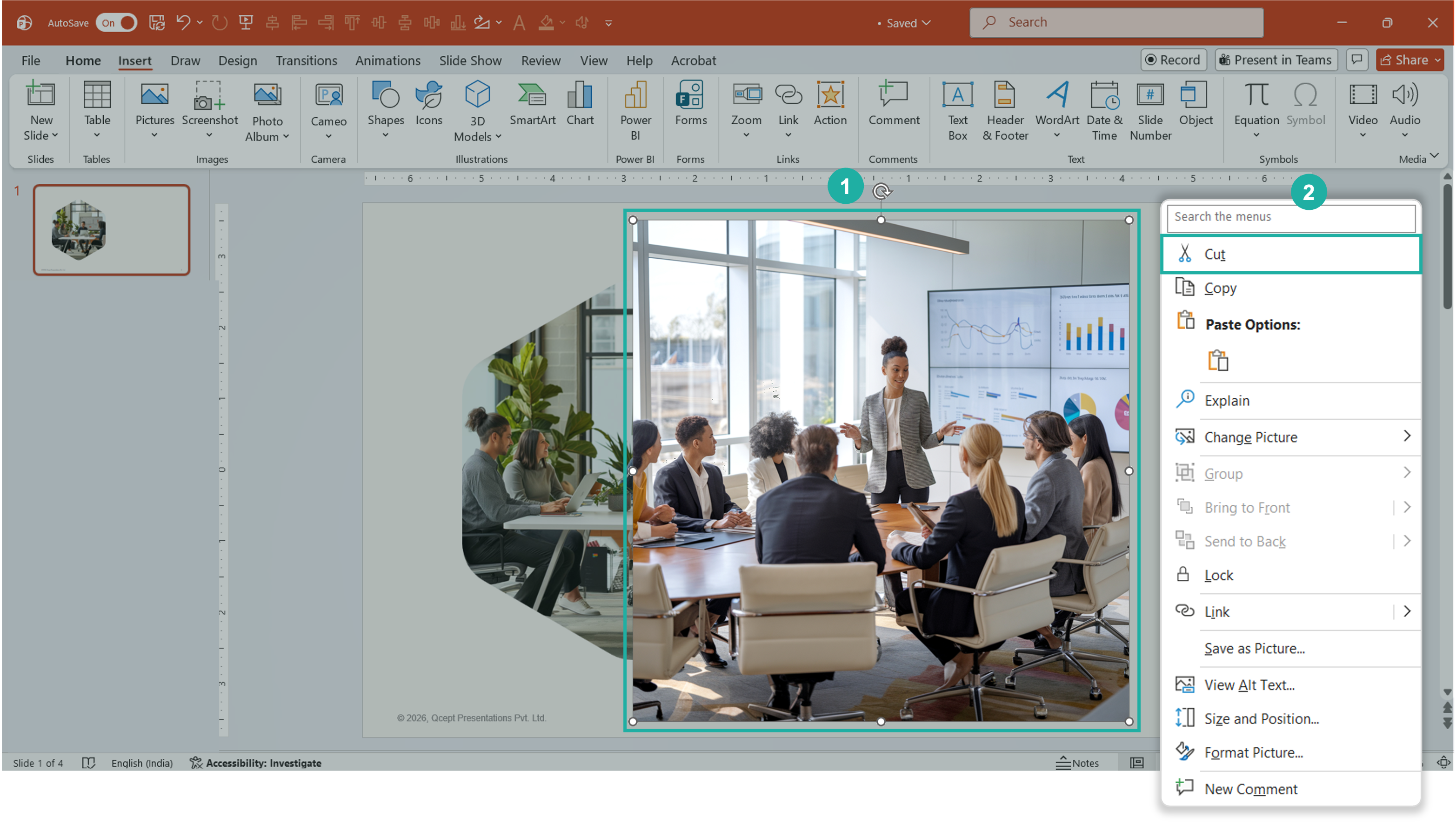
Copy the new image and cut it from the slide
- Find the image you want to use, wherever it lives, your file folder, a browser tab, another slide, anywhere. Copy it.
- Paste it directly onto your presentation, outside the placeholder, just onto open slide space. It will land as a regular floating image.
- Select that image and right-click it, then choose Cut. Or just use the shortcut, Ctrl+X on Windows, Cmd+X on Mac.
Select the placeholder and change the picture from clipboard
Select the shape. Right-click and choose Format Shape from the context menu. The Format Shape panel will open on the right side of your screen.
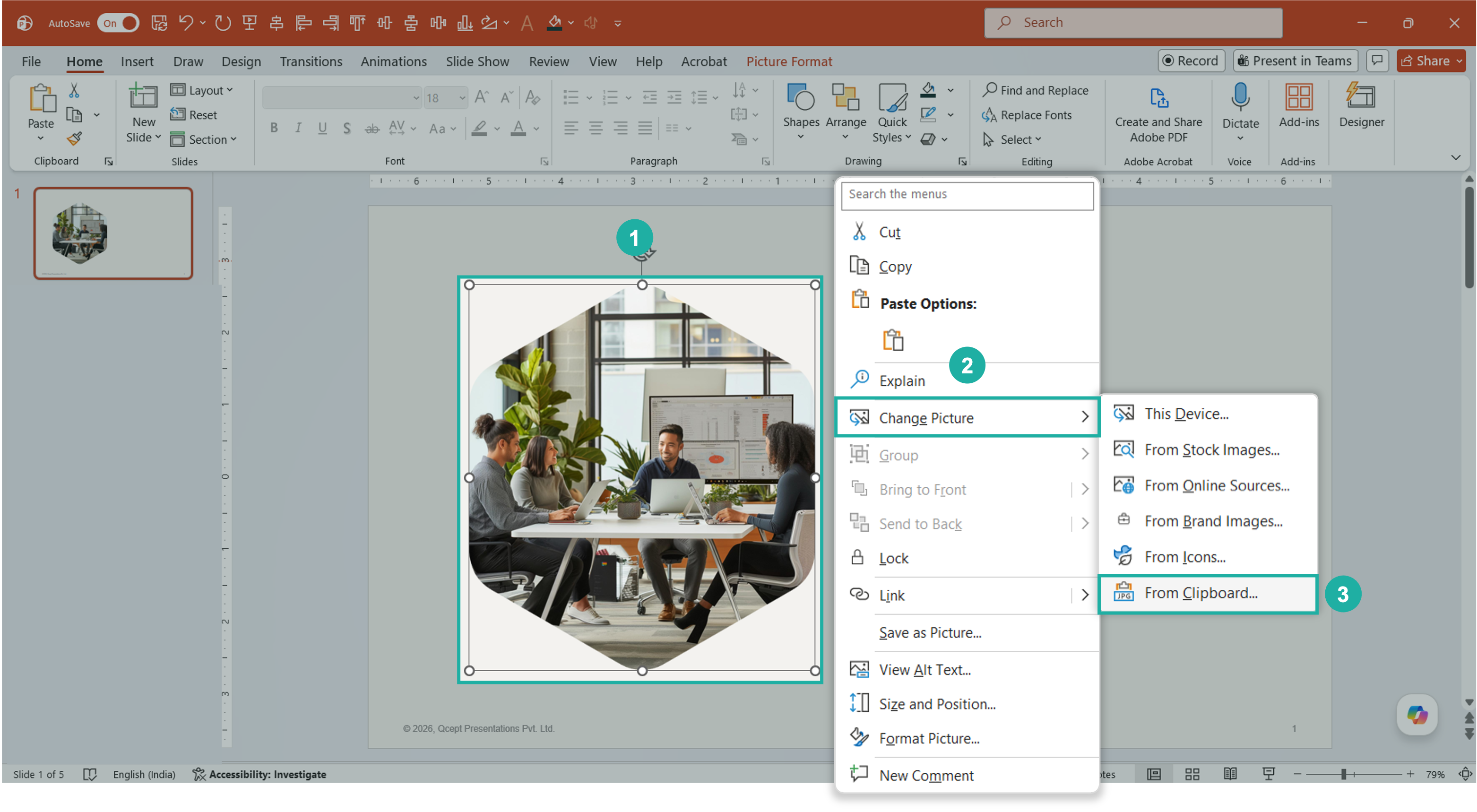
- Click once on the placeholder you want to update, the one still holding the old image.
- Right-click it. Go to Change Picture. A small side menu opens with a few sourcing options, This Device, From Stock Images, From Online Sources, From Brand Images, From Icons, and the one you want here, From Clipboard.
- Click From Clipboard.
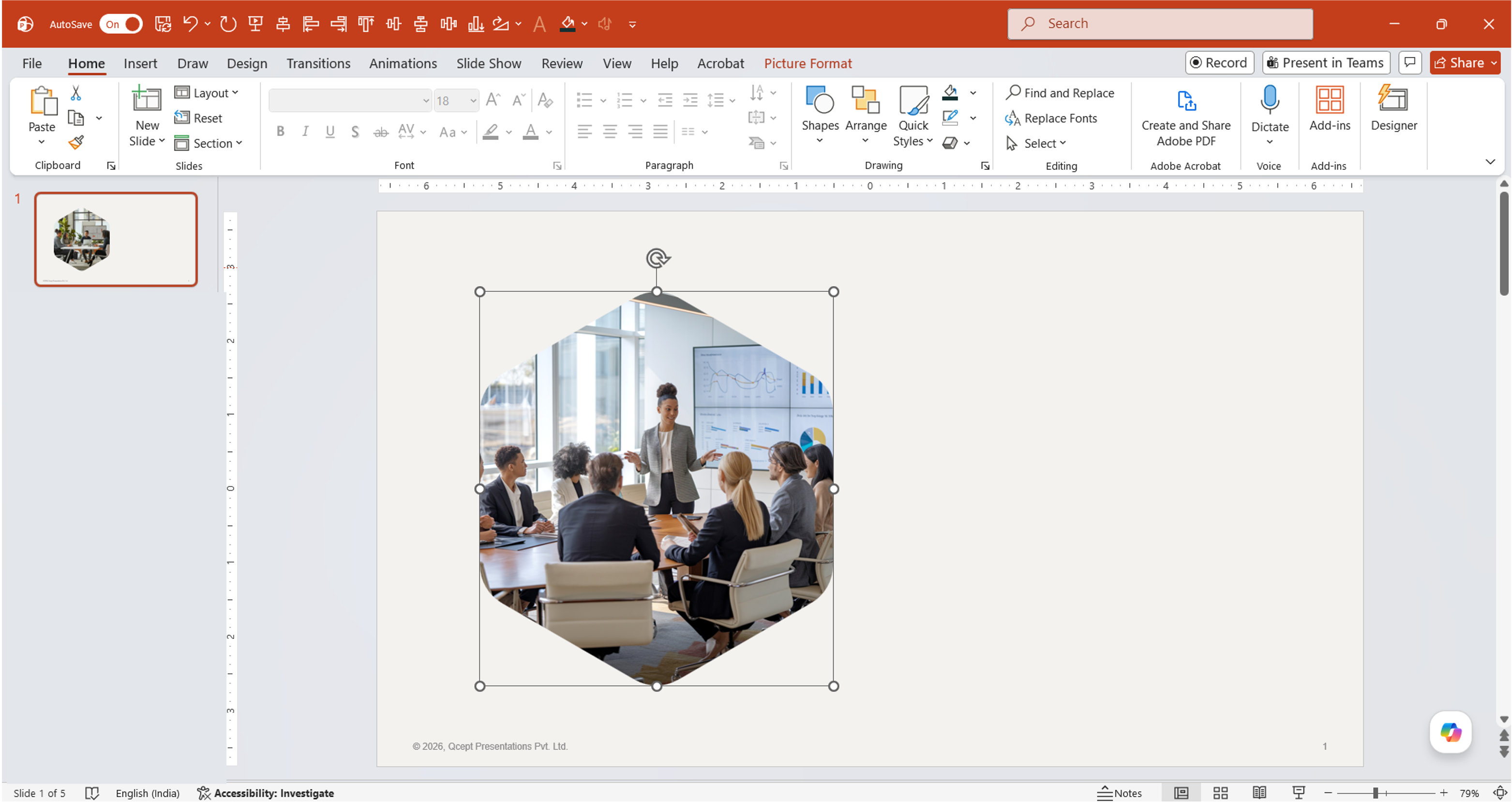
That’s it. The new image drops straight into the placeholder, keeping the exact crop, shape, and position the placeholder was already set to. No dragging, no resizing, no fixing alignment after.
The result
The placeholder now holds the new image with the same masked shape and framing it had before, like nothing was ever touched except the picture itself.
The conclusion: Back to that 6 PM deck
The consultant from the top of this post did not raise a design request. Two clicks, new image in, formatting untouched, deck out the door on time.
This is the kind of thing a design team should never need to hear about, because it should not need their time in the first place. Save the design requests for the slides that actually need design thinking, the ones where layout, hierarchy, or visual storytelling is the real problem. For everything else, small fixes like this one, this is what you needed to know.

We use storytelling and design to build high impact presentations for leading brands
PowerPoint design
services and outsourcing
Enterprises, analysts, consultants
Investor pitches
and fundraising narrative
Founders, fund managers
Sales presentations, proposals, and collaterals
Sales & marketing teams
PowerPoint template and visual slide bank
Enterprises, advisory & research firms
CXO presentations
and thought leadership
IT-BPO services & consulting firms
Financial, ESG,
and annual reports
Financial services, large enterprises
Training – PowerPoint design and visualization
Sales team, analysts, consultants
Conference and event presentations
Keynote speakers, event managers