How to crop images in PowerPoint and why it matters more than you think
May 24, 2026 | 6 min read

Somewhere around slide 14 of a 40-slide deck, there is a moment most consultants and analysts know well. The chart is too wide. The logo has a white box around it. The screenshot you pulled from a client site is showing three browser tabs, a notification bar, and a clock in the corner. The image technically fits on the slide. It just looks terrible.
Most people respond by shrinking the image until it is too small to read, or leaving it as-is and hoping the audience stays focused on the speaker. Neither works. The right move is to crop it. And yet, cropping is one of those PowerPoint basics that almost nobody learns properly, because no one ever sits down to teach it.
This guide covers exactly how to crop images in PowerPoint, what the tool actually does, and how to use it well when the stakes are high.
What does cropping do in PowerPoint?
Cropping an image in PowerPoint means hiding parts of it, trimming the frame so only the relevant portion is visible. Unlike deleting or resizing, cropping does not change the image itself. It controls what the audience sees.
For consultants and analysts, this matters because every visual element on a slide either supports the point or competes with it. A screenshot that shows irrelevant UI chrome, a photograph with a distracting background, a chart pulled from a report with a watermark in the corner: all of these pull attention away from the message. Cropping is how you fix that.
How to crop an image in PowerPoint: step-by-step
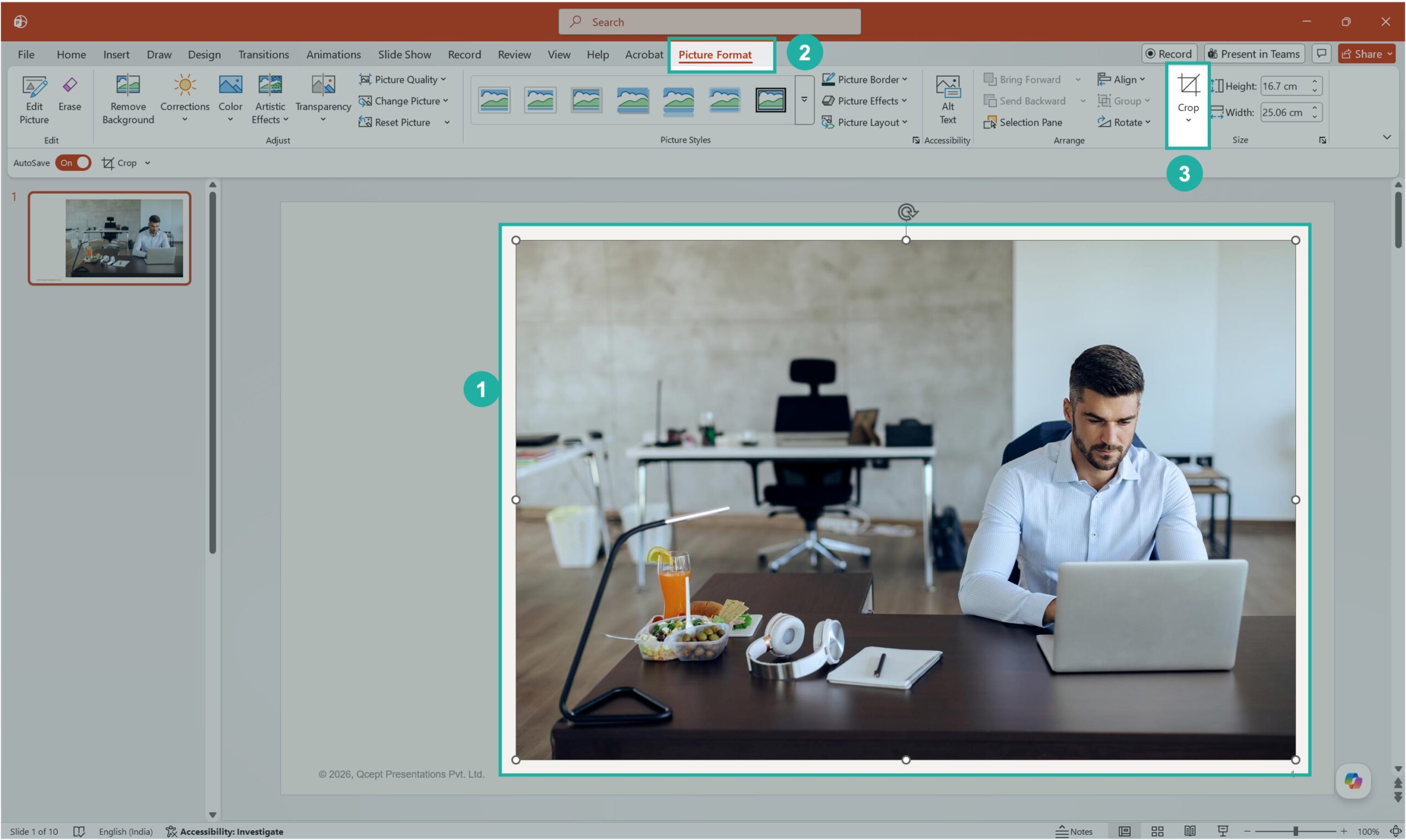
Select and open the crop tool
- Select the image you want to edit.
- Go to the Picture Format tab in the top menu.
- On the right side, click Crop under the Size section.
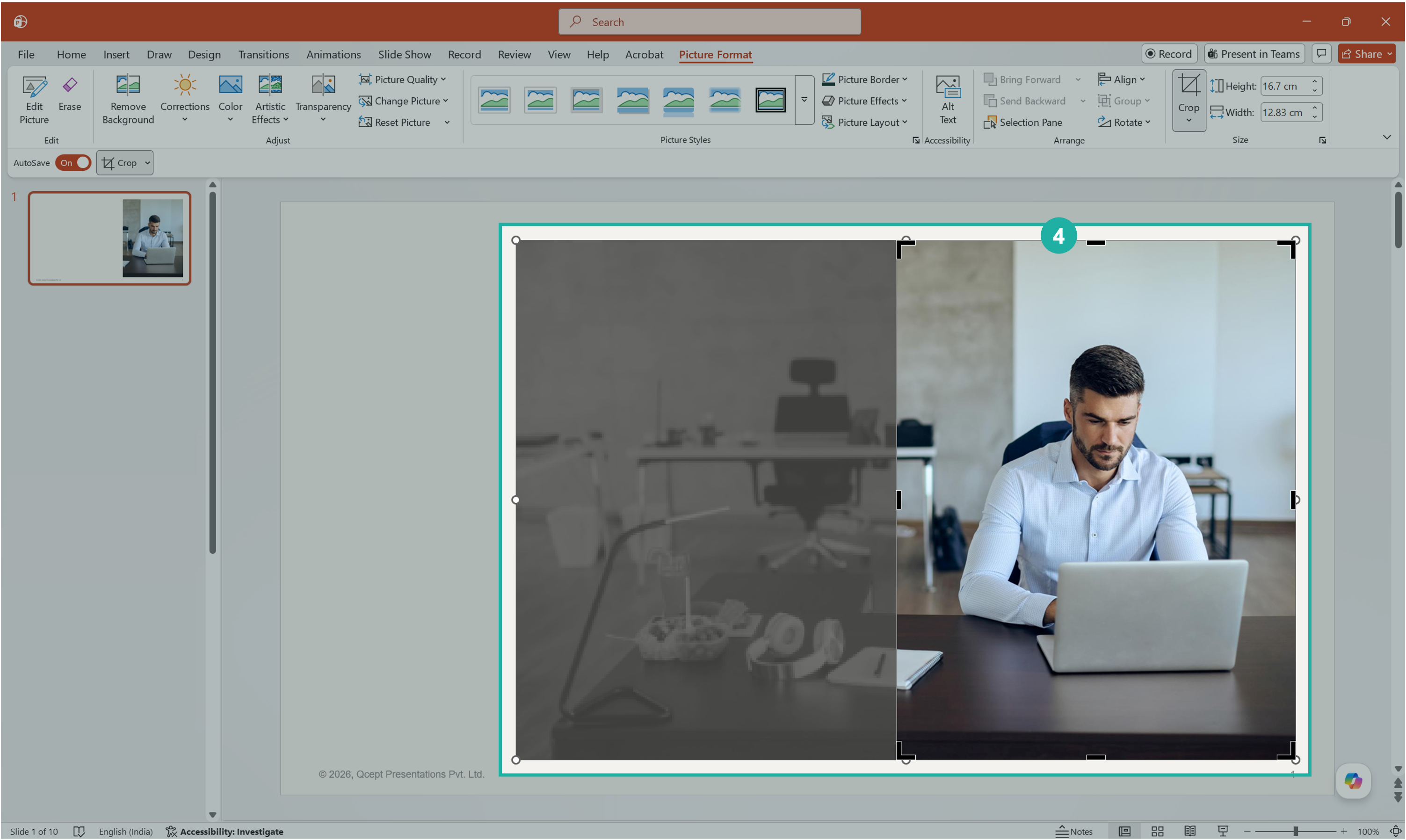
Adjust and apply
To create safe margins, you’ll need additional guides.
Crop handles will appear around the image. Drag the edges or corners inward to adjust the visible area. When you have framed exactly what you want, press Enter to apply.
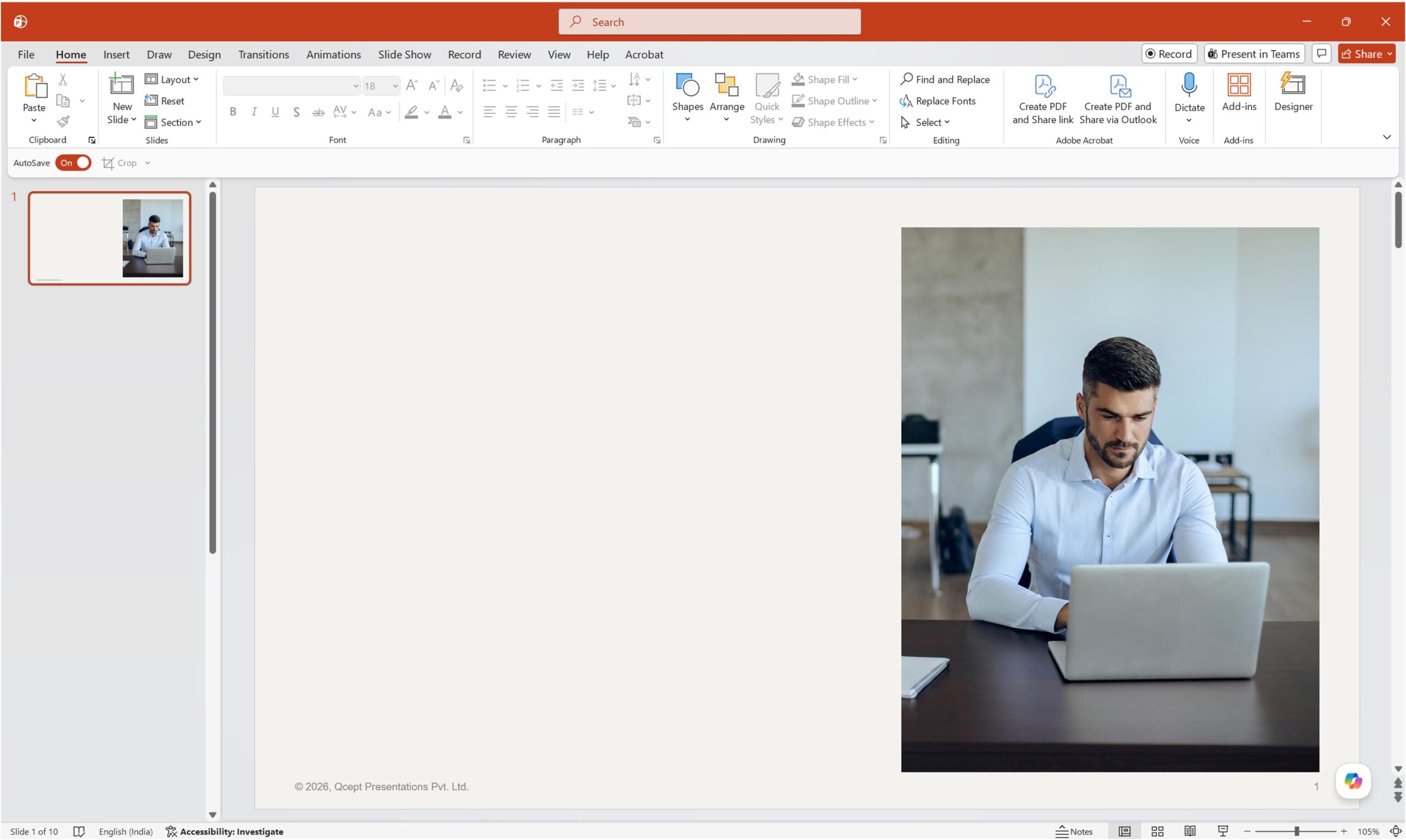
Final result
With a simple crop, the image now directs attention exactly where it should. No distractions. No wasted space. Small edits like this are what make slides feel sharp, not cluttered.
What happens to the hidden part of the image?
This is where most people get tripped up. When you crop in PowerPoint, the trimmed portion is not deleted. It is hidden. If you resize the image later, those edges may reappear. To permanently remove the hidden area, go to Picture Format > Compress Pictures and check the option to delete cropped areas. This also reduces file size, which matters once your deck crosses 20 slides with multiple images.
Crop to shape: circular headshots and custom frames
PowerPoint lets you crop an image into any shape in its library, not just a rectangle. This is useful for placing headshots in circular frames on team slides, or using geometric shapes as image containers in infographic-style layouts.
To do this: with the image selected, go to Picture Format > Crop > Crop to Shape, then choose your shape from the dropdown.
Used intentionally, this is a clean design move. Used carelessly, it produces slides that look like a design experiment from 2007. Keep it simple.
Crop to aspect ratio: getting consistent image dimensions
If you are building slides with side-by-side images or a structured visual grid, inconsistent image proportions will immediately make the layout look unpolished. Cropping to a fixed aspect ratio solves this without manual guesswork.
Select the image, go to Picture Format > Crop > Aspect Ratio, and pick the ratio that fits your layout, such as 16:9 for wide frames or 1:1 for square tiles. PowerPoint will apply the ratio and let you reposition the image inside the crop frame to control exactly what is centered.
Fill vs. fit: the one distinction that changes how images look in placeholders
When an image is placed inside a shape or placeholder, PowerPoint makes a decision about how to display it. Fit shows the entire image but may leave blank space on the sides. Fill covers the full frame but may crop the image automatically.
Most people never touch these settings and end up with inconsistent image behavior across slides. To control it manually, select the image and go to Picture Format > Crop > Fill or Crop > Fit, then reposition the image inside the crop frame to choose what part is shown.
Once you understand Fill, you can place any image into any container and control exactly what the audience sees. This is the foundation of clean, grid-based slide layouts.
Practical example: cropping a screenshot for a client slide
Take a product screenshot that includes the browser toolbar, open tabs, system notifications, and a taskbar at the bottom. On a slide, none of that belongs. It adds visual noise and makes the deck look pulled together in five minutes.
Select the screenshot. Open the Crop tool via Picture Format. Drag the top handle down to cut the browser bar. Drag the bottom handle up to remove the taskbar. Drag the sides to eliminate empty browser space. Press Enter.
What remains is the interface itself, nothing else. The slide now focuses attention exactly where it should.
A note on image quality after cropping
Cropping does not rescue a low-resolution image. If the source is blurry, a tighter crop makes it more so. Before spending time on crop adjustments, check whether the image is actually sharp at 100% zoom in PowerPoint. If it looks slightly soft at normal view, it will look soft projected in a room.
For screenshots specifically, capture them at the highest resolution your screen allows and avoid compressing before pasting into the deck.
The conclusion: PowerPoint’s cropping tools take about ten minutes to learn and they have an immediate effect on how your slides look.
Not because cropping is a design trick, but because it gives you control over what your audience actually looks at.
Every image on a slide is a choice. Cropping is what makes that choice intentional.
If your decks still feel cluttered despite the right content, the problem is usually not the data or the thinking. It is what is sitting around it.


We use storytelling and design to build high impact presentations for leading brands
PowerPoint design
services and outsourcing
Enterprises, analysts, consultants
Investor pitches
and fundraising narrative
Founders, fund managers
Sales presentations, proposals, and collaterals
Sales & marketing teams
PowerPoint template and visual slide bank
Enterprises, advisory & research firms
CXO presentations
and thought leadership
IT-BPO services & consulting firms
Financial, ESG,
and annual reports
Financial services, large enterprises
Training – PowerPoint design and visualization
Sales team, analysts, consultants
Conference and event presentations
Keynote speakers, event managers