How to turn on safe margins & guides in PowerPoint
March 23, 2026 | 3 min read
If your slides sometimes lose text or visuals near the edges on different screens, safe margins fix that, here is how to set up guides in PowerPoint in under five minutes.
When designing slides in PowerPoint, it’s easy to accidentally place text or visuals too close to the edges. This can cause important content to get cut off when presenting on different screens or exporting to video. That’s where safe margins and guides come in. They help you keep everything aligned, balanced, and visible.
In this guide, you’ll learn exactly how to turn on guides, create margin boundaries, and use them effectively.
What are safe margins in PowerPoint?
“Safe margins” aren’t a built-in feature labeled as such in PowerPoint, but you can simulate them using guides. These guides act as visual boundaries to ensure your content stays within a safe viewing area.
Designers commonly leave:
- 0.5 to 1 inch margins from each edge
- Extra space for titles and footers
Turn on guides
- Open your PowerPoint presentation
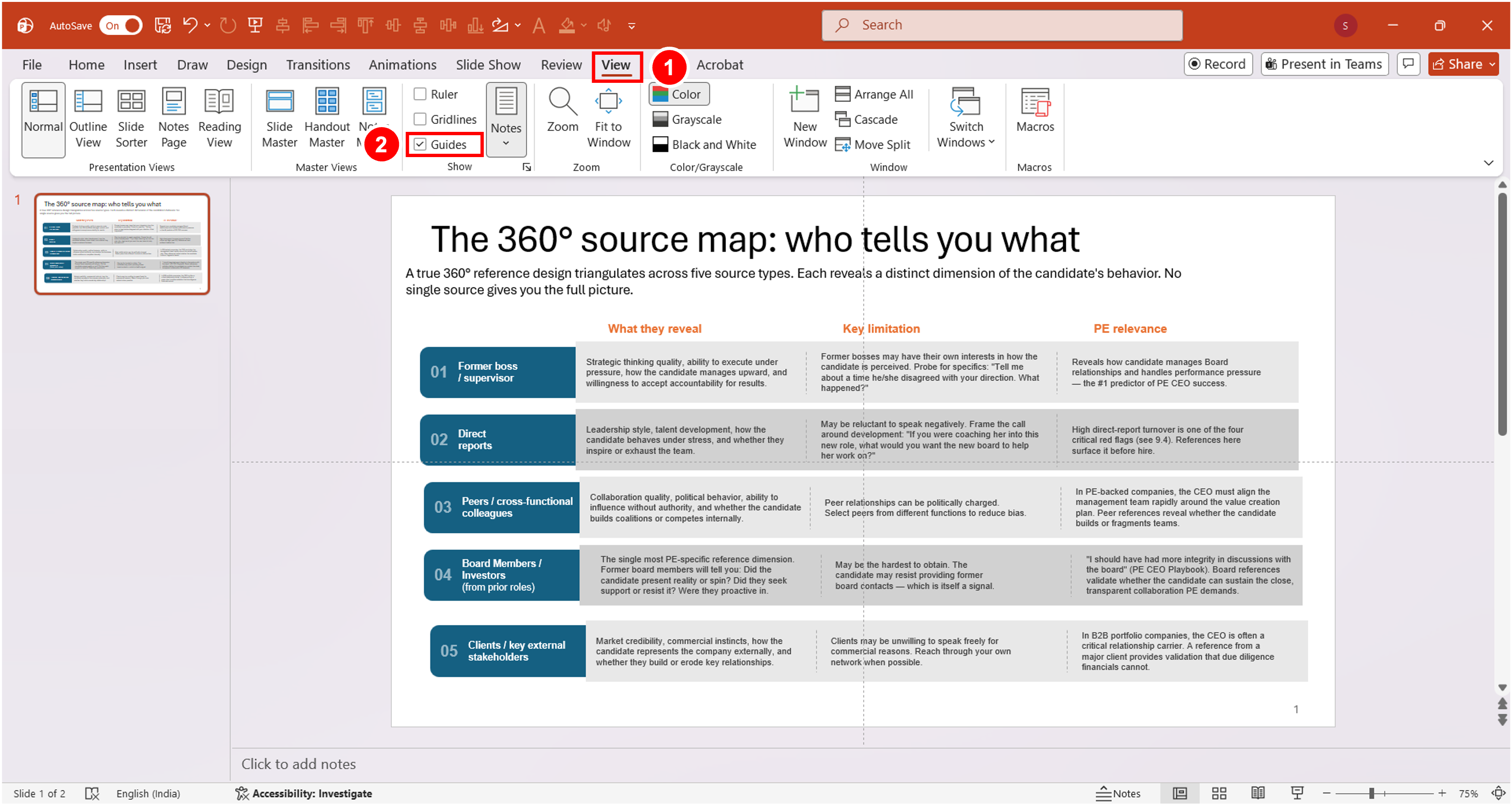
- Go to the View tab in the top menu
- Check the box for Guides
You’ll now see:
- A vertical guide
- A horizontal guide
These intersect at the center of your slide.
Add more guides (Create margins)
To create safe margins, you’ll need additional guides.
Method 1: Right-click
- Right-click on the slide
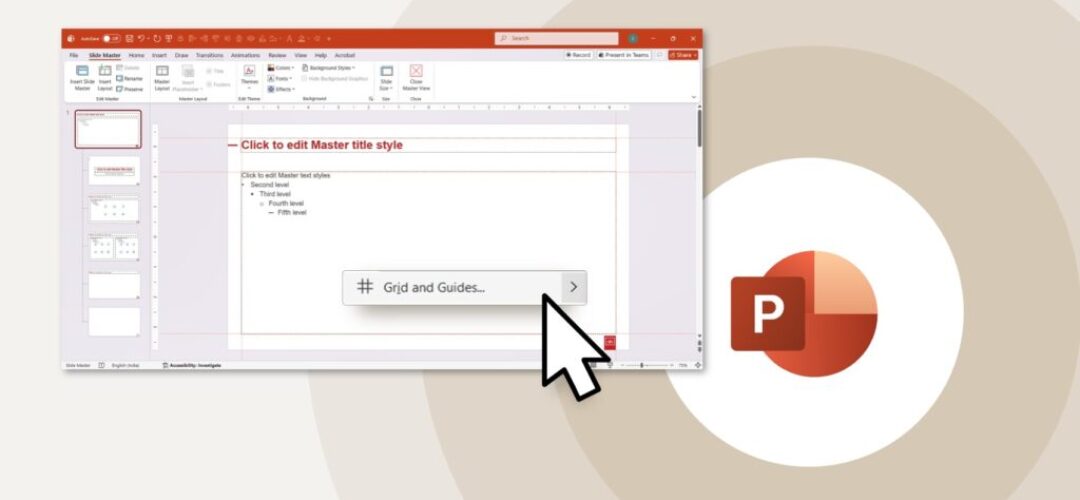
- Click on Grid and Guides..
- Select Add Vertical Guide or Add Horizontal Guide
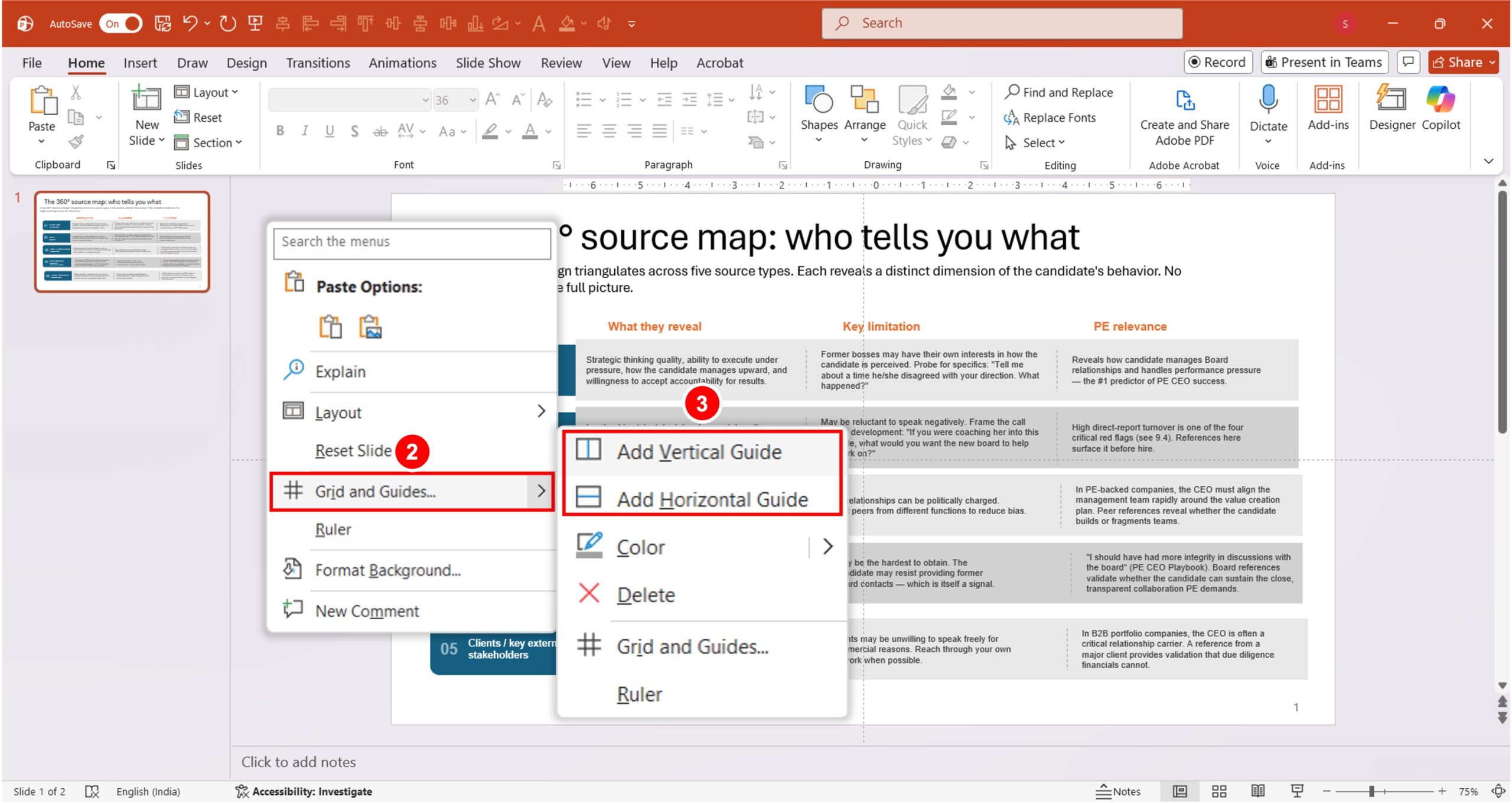
Method 2: Keyboard shortcut
- Hold Ctrl (Windows) or Option (Mac)
- Click and drag an existing guide to duplicate it
Position your margin guides
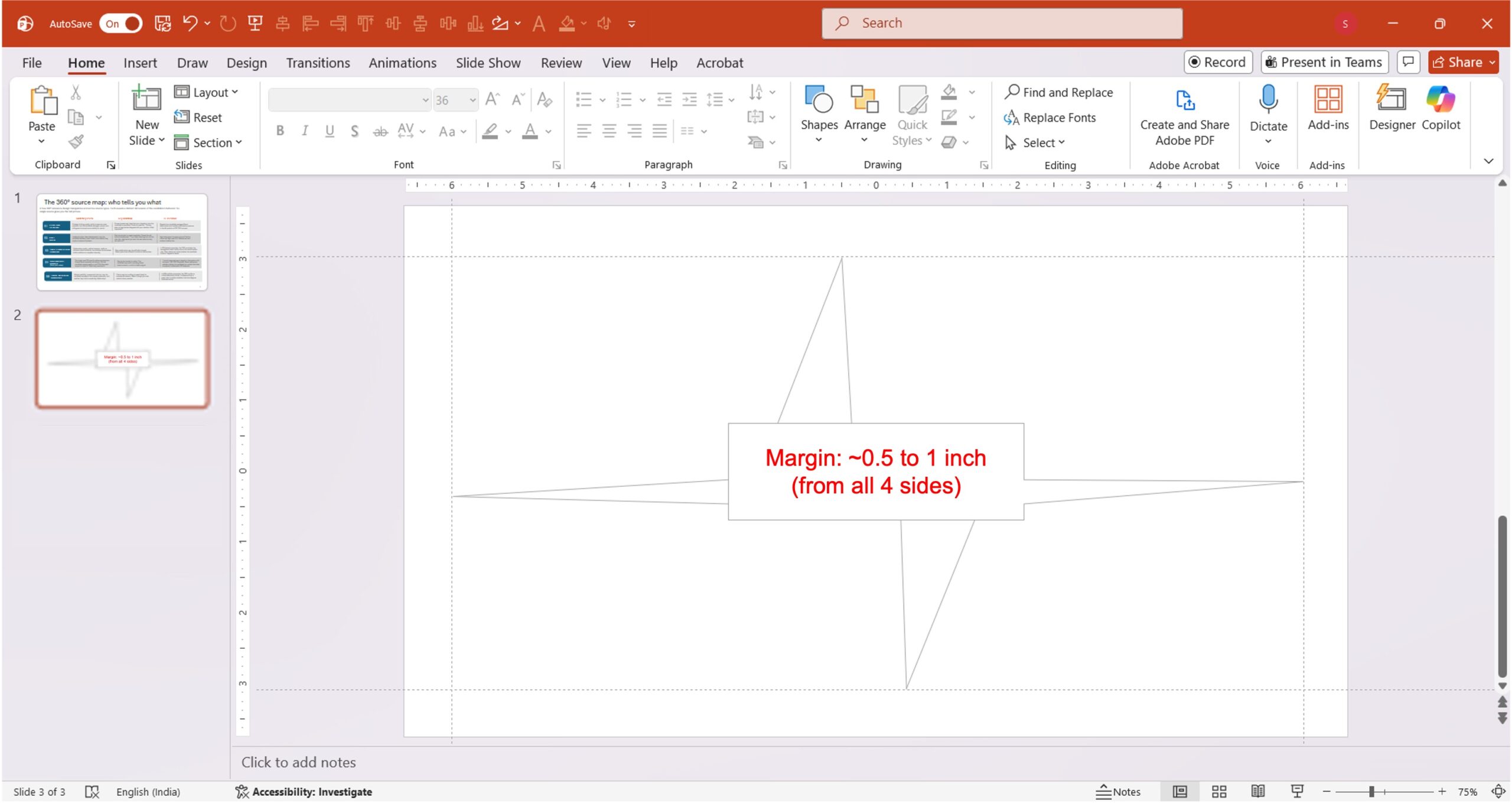
Now, move the guides to create your safe zones.
- Drag guides inward from each edge
- Common placement:
- Top margin: ~0.5 to 1 inch
- Bottom margin: ~0.5 to 1 inch
- Left and right margins: ~0.5 to 1 inch
As you drag, PowerPoint will show measurement indicators.
Turn on ruler & gridlines (Optional but helpful)
For more precision:
- Go to the View tab
- Enable:
- Ruler
- Gridlines
This helps you align objects consistently and maintain spacing.
Lock your layout (Best practice)
PowerPoint doesn’t have a “lock guides” feature, but you can:
- Be careful not to drag guides accidentally
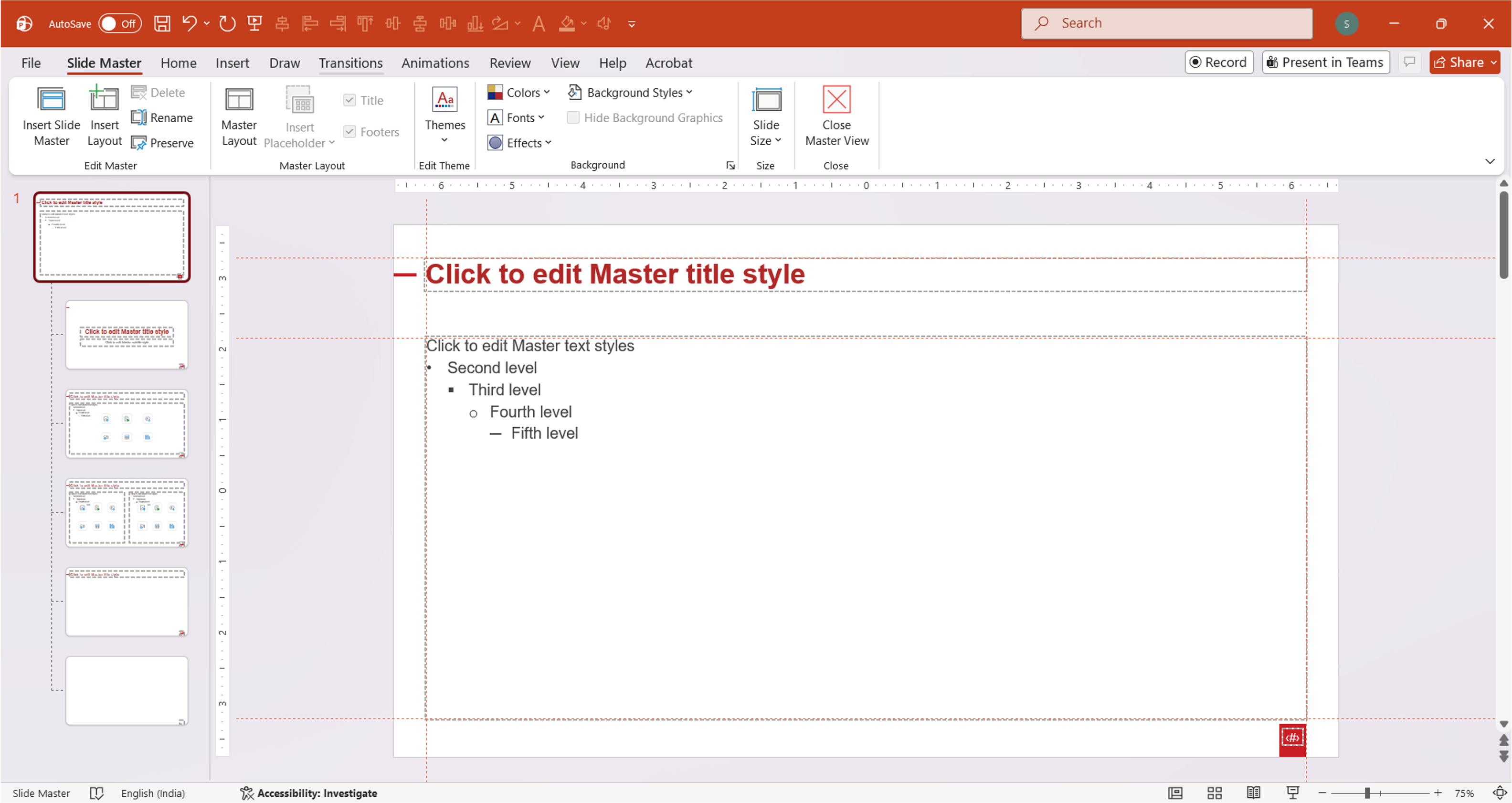
- Set up guides in Slide Master so they apply to all slides
To use Slide Master:
- Go to View → Slide Master
- Add and position guides
- Close Master View
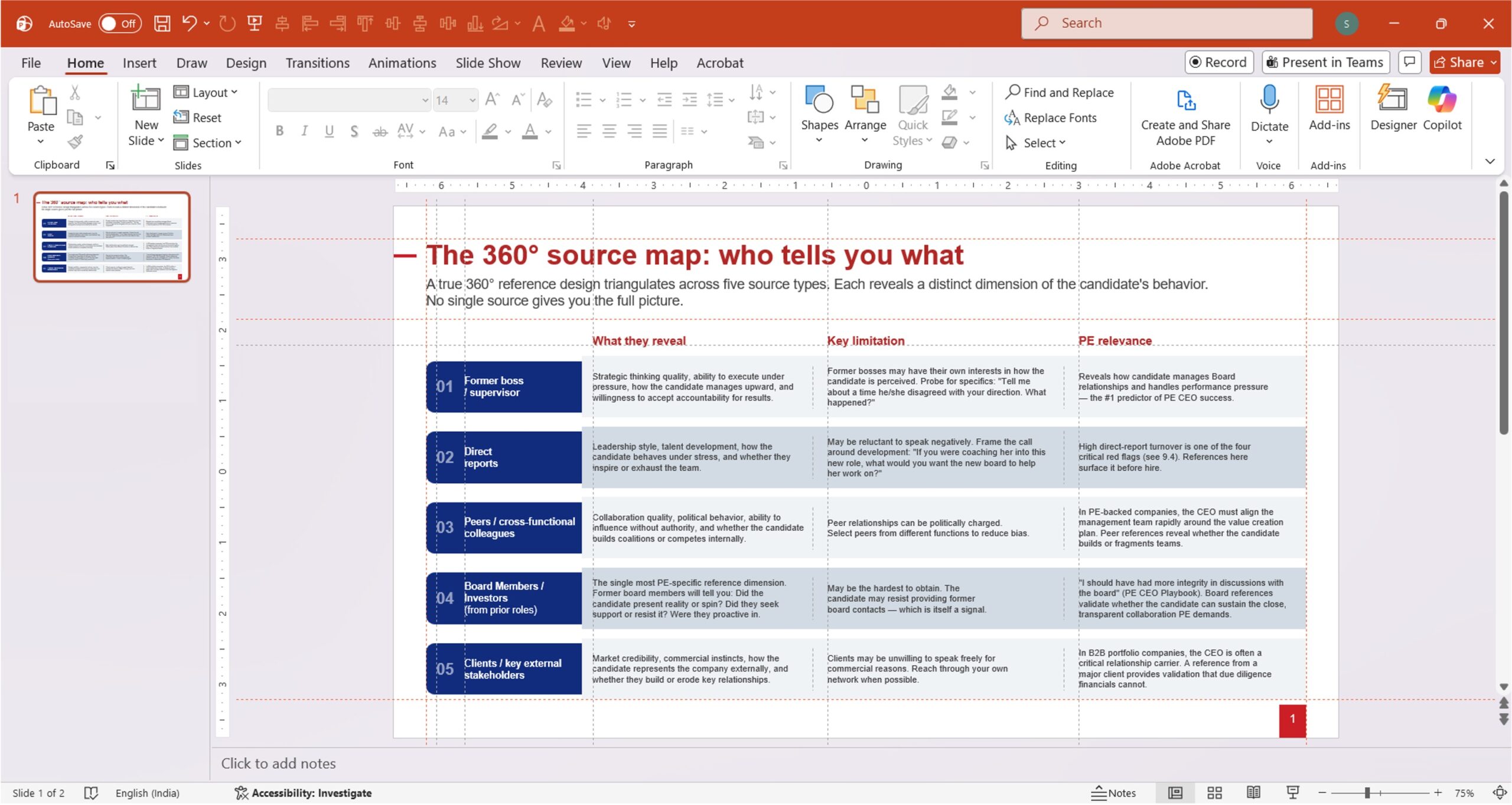
Now every slide follows the same margin structure.
Design tips for using safe margins
- Keep text inside the margins to avoid cutoff on smaller screens
- Avoid placing logos or important visuals near edges
- Use guides to align titles, images, and icons consistently
- Maintain equal spacing for a clean, professional look
Why safe margins matter
Using guides isn’t just about neatness. It ensures:
- Better readability
- Consistent design across slides
- Compatibility with different screen sizes
- Cleaner exports to PDF or video
The conclusion:
PowerPoint doesn’t label them as “safe margins,” but with guides, you can easily create a structured layout that keeps your slides polished and professional. Once you start using them, it becomes second nature, and your presentations will immediately look more refined.

We use storytelling and design to build high impact presentations for leading brands
PowerPoint design
services and outsourcing
Enterprises, analysts, consultants
Investor pitches
and fundraising narrative
Founders, fund managers
Sales presentations, proposals, and collaterals
Sales & marketing teams
PowerPoint template and visual slide bank
Enterprises, advisory & research firms
CXO presentations
and thought leadership
IT-BPO services & consulting firms
Financial, ESG,
and annual reports
Financial services, large enterprises
Training – PowerPoint design and visualization
Sales team, analysts, consultants
Conference and event presentations
Keynote speakers, event managers